How to use Ntro.io

Set up in minutes. Get real-time AI assistance during your interview.
1. Install the Extension
download
Install the Extension from the Chrome Web Store

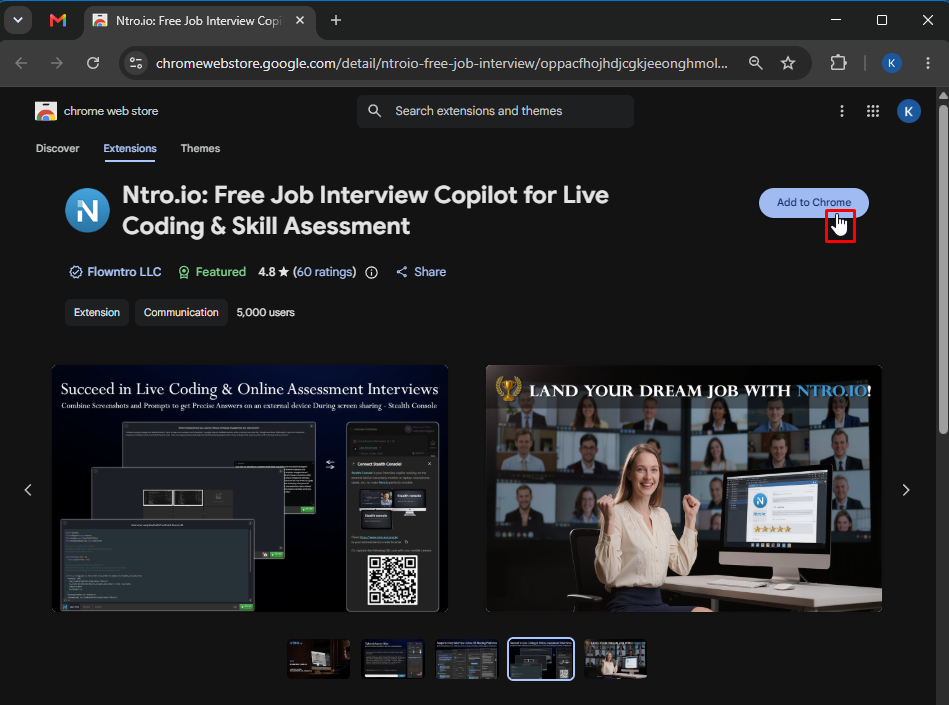
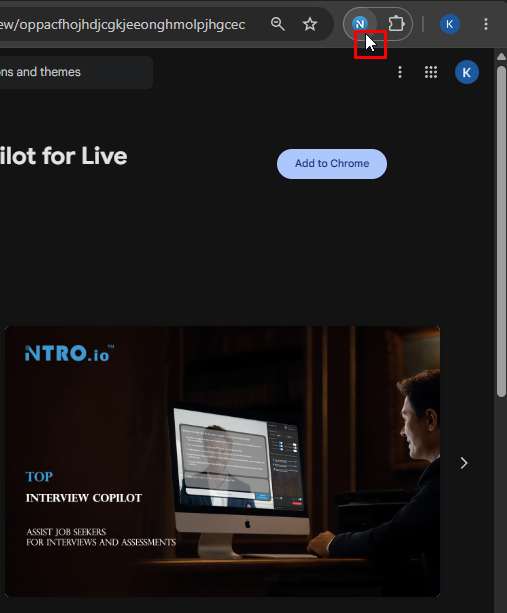
Click "Add to Chrome" to install the Ntro.io extension.  

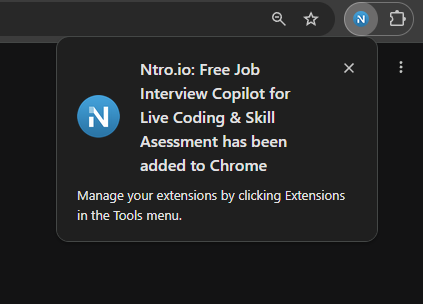
After a few seconds, the Ntro icon will appear next to your browser's address bar, and a popup will confirm that the installation is complete.
1. Click "Add to Chrome"
add-chrome
2. Pop up message
popup
i-pin
Pin the Extension for Easy Access

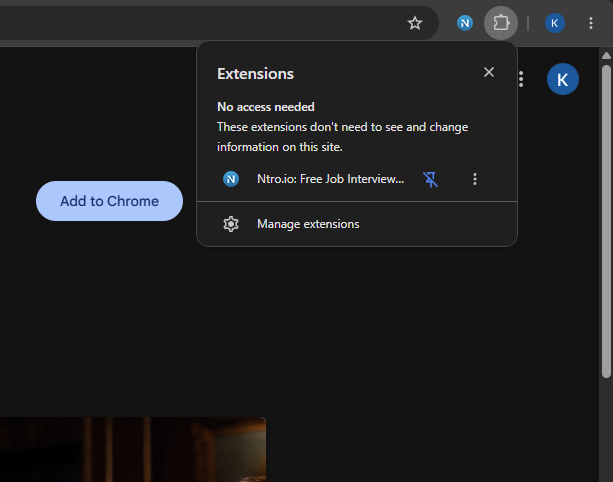
Chrome doesn't keep every extension visible next to the address bar.

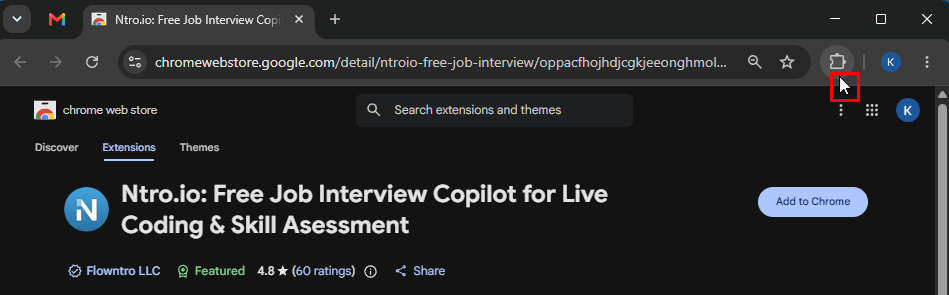
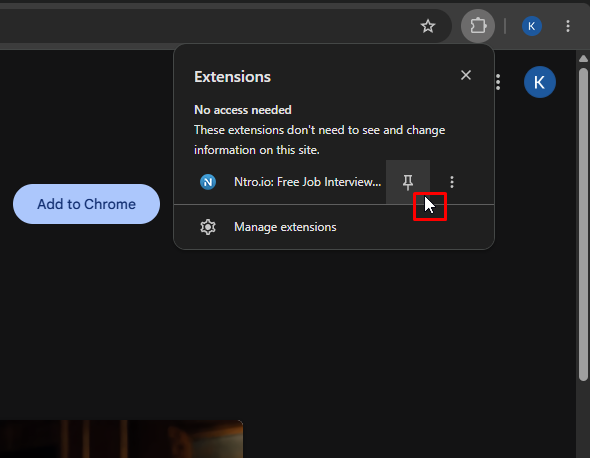
To keep Ntro.io within easy reach, click the Extensions icon, find Ntro.io in the list, and click the Pin icon.

This keeps the extension available whenever you need it.
1. Click Extension Icon
pin-1
2. Click Pin Icon
pin2
3. Pined ! Easy access
pin3
2. Set Up Your Interview
start
Start an Interview Session

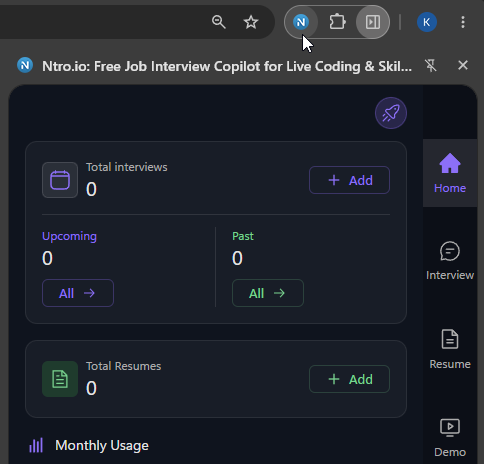
Click the Ntro icon in your browser's toolbar to open the extension.

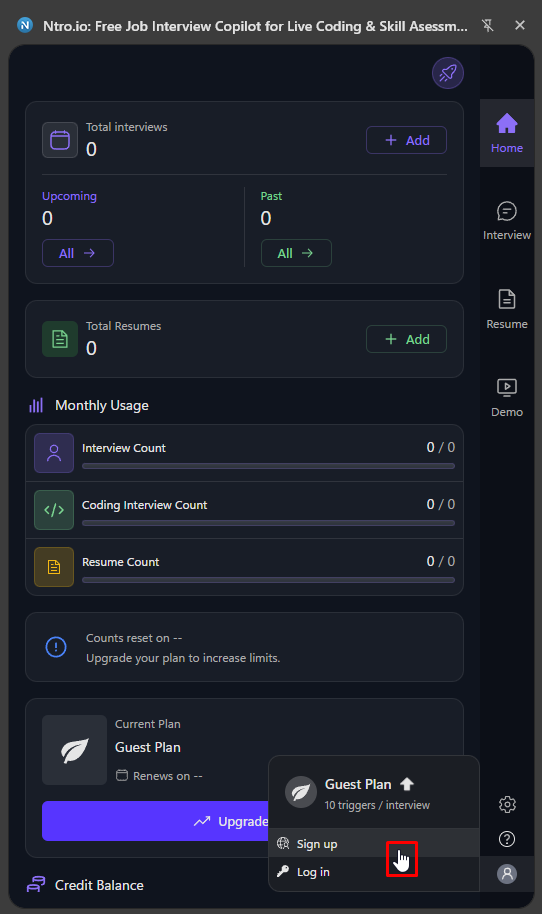
If you're new to Ntro.io, create an account first. Otherwise, simply log in with your existing account.

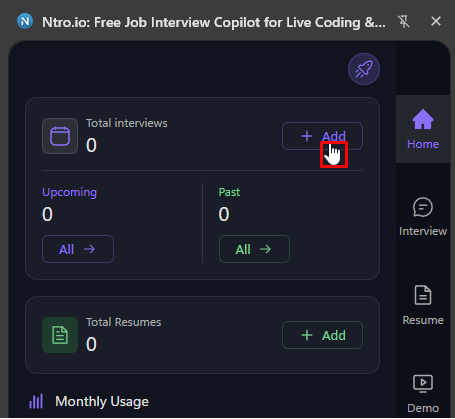
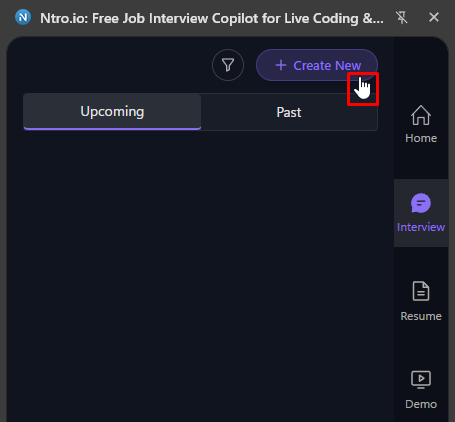
Once you're signed in, create a new interview session from either the Home page or the Interview page.
1. Click Ntro Icon
click-icon
2. Extension opened
p-open
3. Choose Sign up or Log in
click-register
4. Create session in Home page after login
home-session
5. or Create session in Interview page
interview-session
6. Session created !
session-created
setting
Configure Your Interview Session
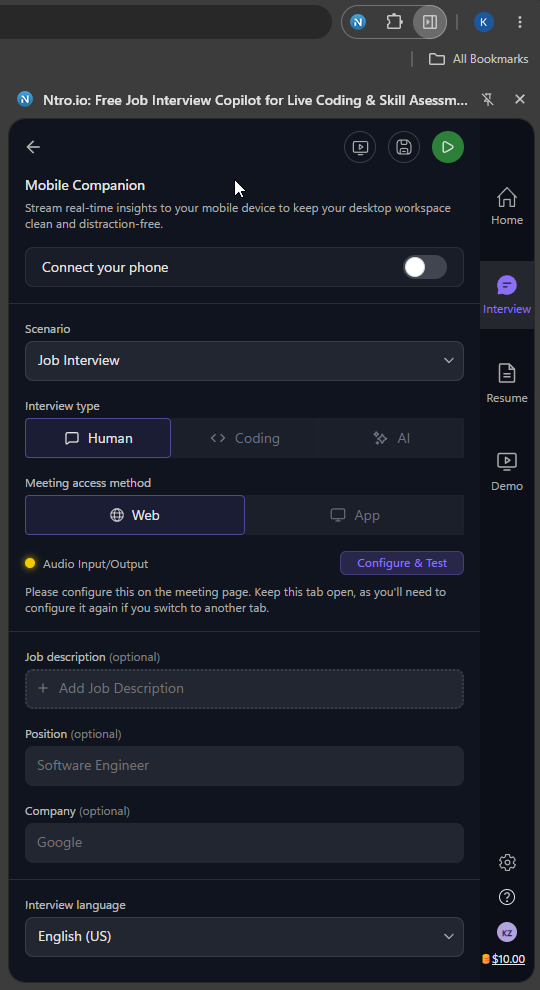
Mobile Companion (Optional Second Screen)
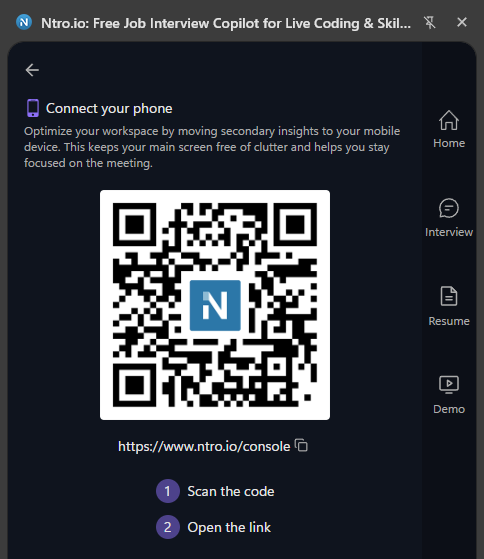
If you'd like to keep your desktop interview window clean and distraction-free, you can receive AI responses on your mobile device instead.

If you prefer to view AI responses directly on your desktop during the interview, simply skip this option.

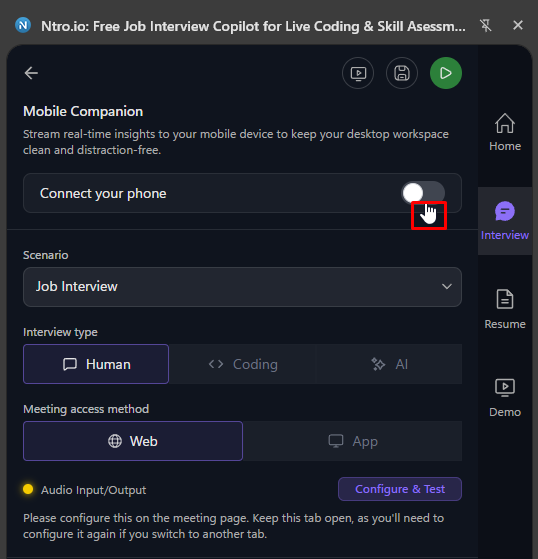
 To use Mobile Companion:          
  - Connect your phone to the extension first.
 - Once your phone is connected, continue setting up the rest of your interview session.
1. Click connect radio
connect-phone
2. Scan or Open link through Mobile
scan
Scenario
Choose the interview type that best matches your session.

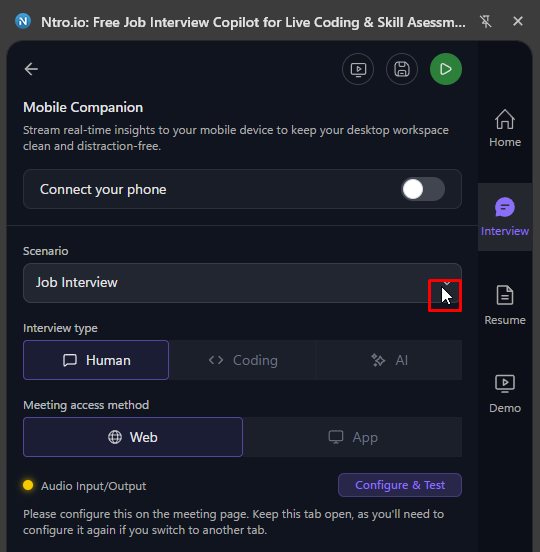
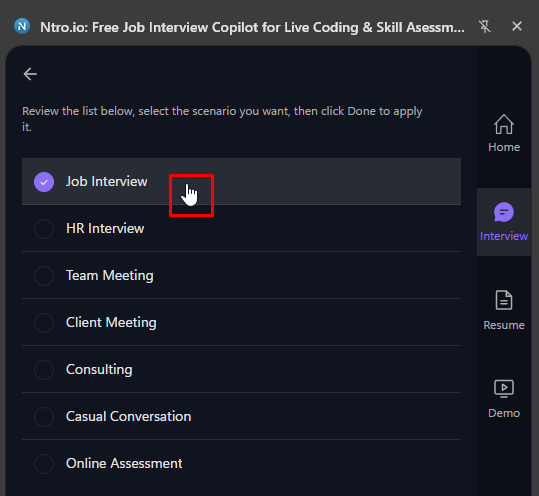
Click the Scenario dropdown to open the list, then select the scenario you want to use.
1. Click Scenario dropdown
scenario
2. Select the Scenario (interview type)
scenario-options
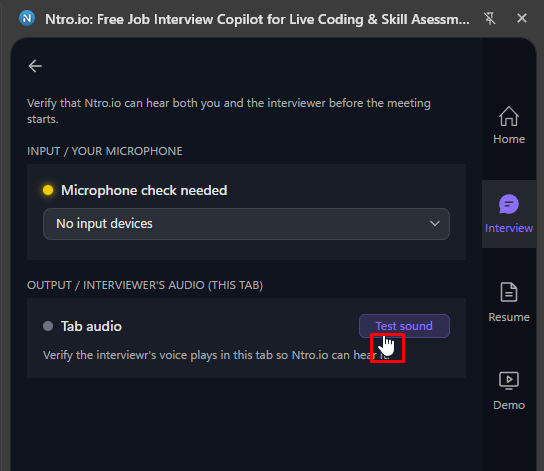
Configure & Test Audio
Before your interview starts, test your microphone and speakers.

Running the Audio Input/Output Test helps identify common audio issues before your meeting begins.
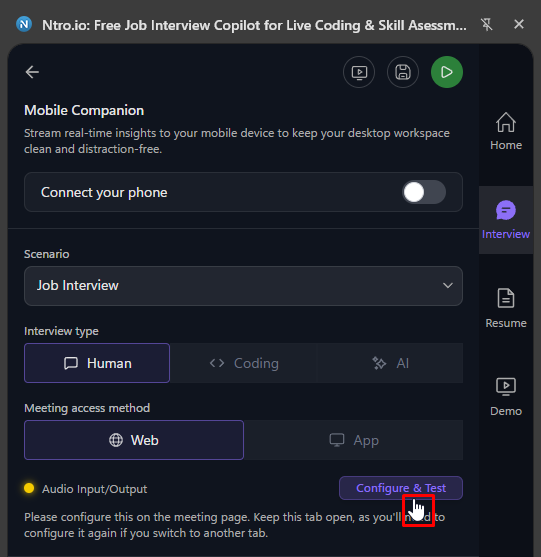
 - Click Configure & Test.
 - Verify both your microphone and speakers are working correctly.
 - Continue once the test is complete.
1. Click Configure & Test
audio-test
2. Verify both microphone and speakers
test-audio
Interview Language & Translation
Ntro.io provides two types of text during your interview:  
  - The AI-generated responses.
  - The interviewer's speech captured from the meeting.

You can choose how each one is displayed.
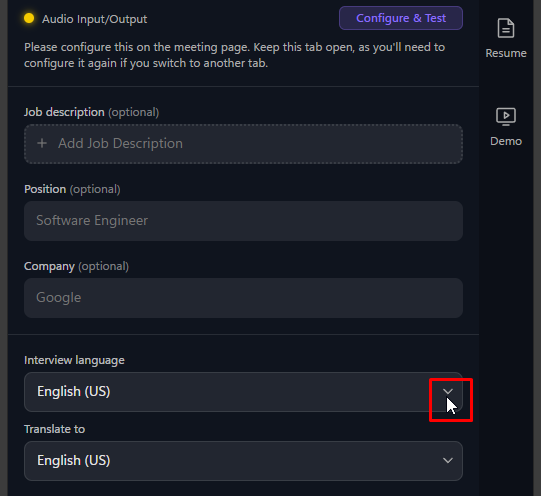
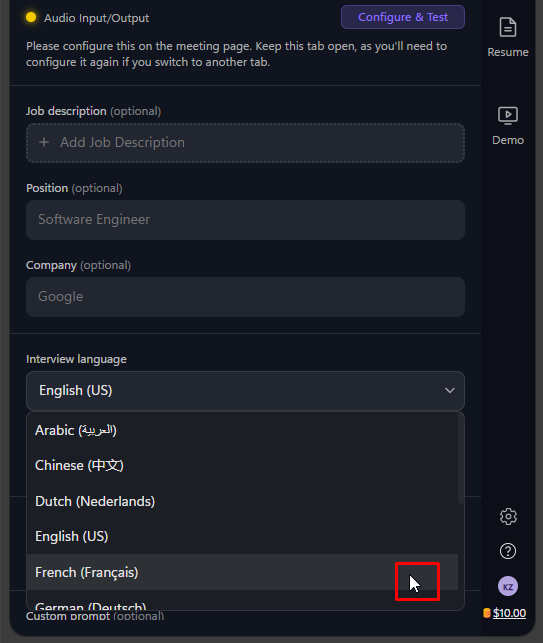
  - Interview Language controls the language used for AI-generated responses.
  - Translate To controls the language used to translate the interviewer's speech after it is captured.
 
Configure both options to receive everything in the language that's most comfortable for you.
1. Click Language dropdown
translate
2. Choose your convenience language
choose-language
Interview Information
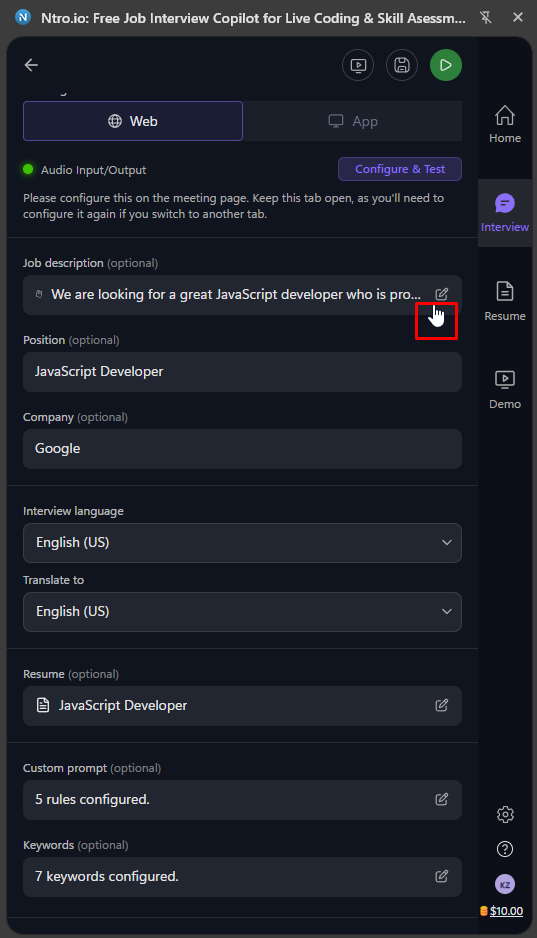
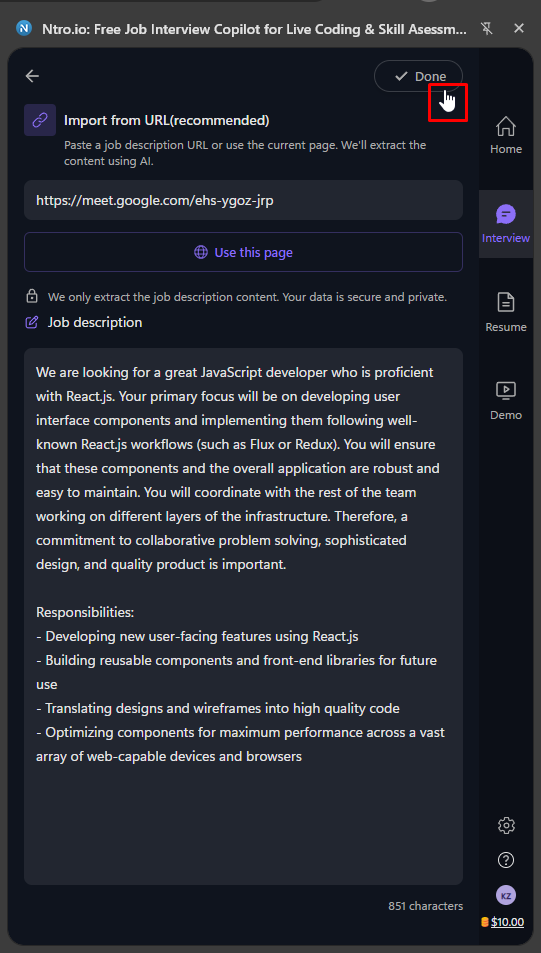
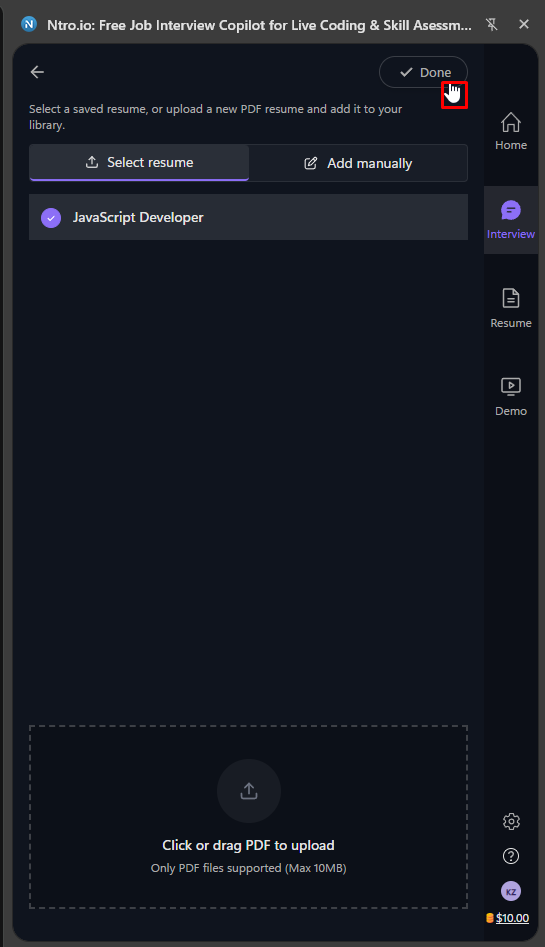
To help Ntro.io better understand your interview and generate more relevant responses, provide as much interview context as possible.

You can optionally add:
  - Job Description, Position, Company, Resume, Custom Prompt, Keywords.

The more context you provide, the better Ntro.io can tailor its responses to your interview.

1. Fill out Job Description
job-description
2. Upload Resume
resume
3. All interview info fill outed
interview-info
video
Open Your Meeting Platform
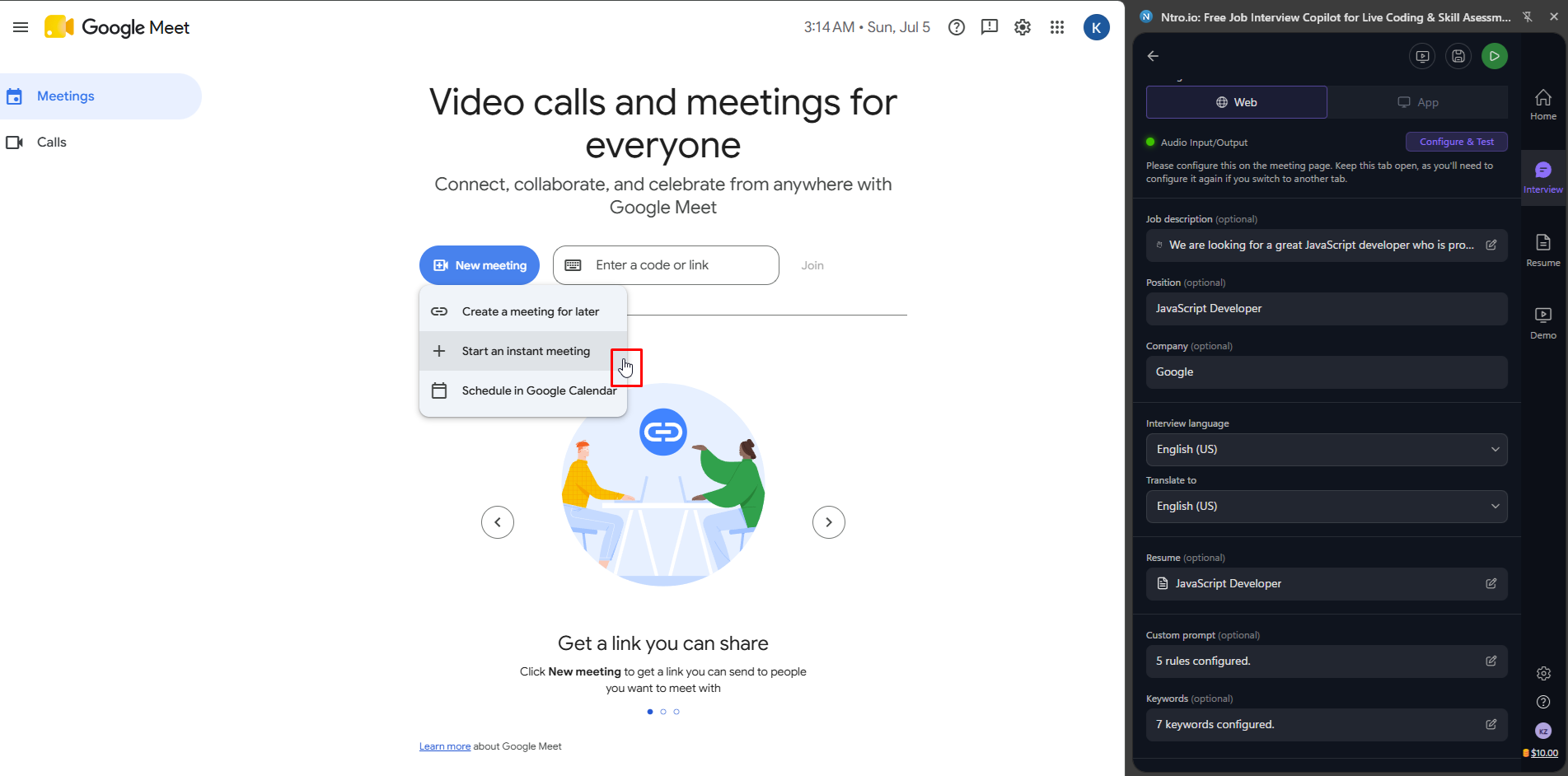
Create or Join Meeting

Ntro.io works with most browser-based meeting and interview platforms.

Simply open your preferred meeting platform, such as Google Meet, Zoom, Microsoft Teams, or any other browser-based meeting application.
1. Create your interview window in your browser
googlemeet
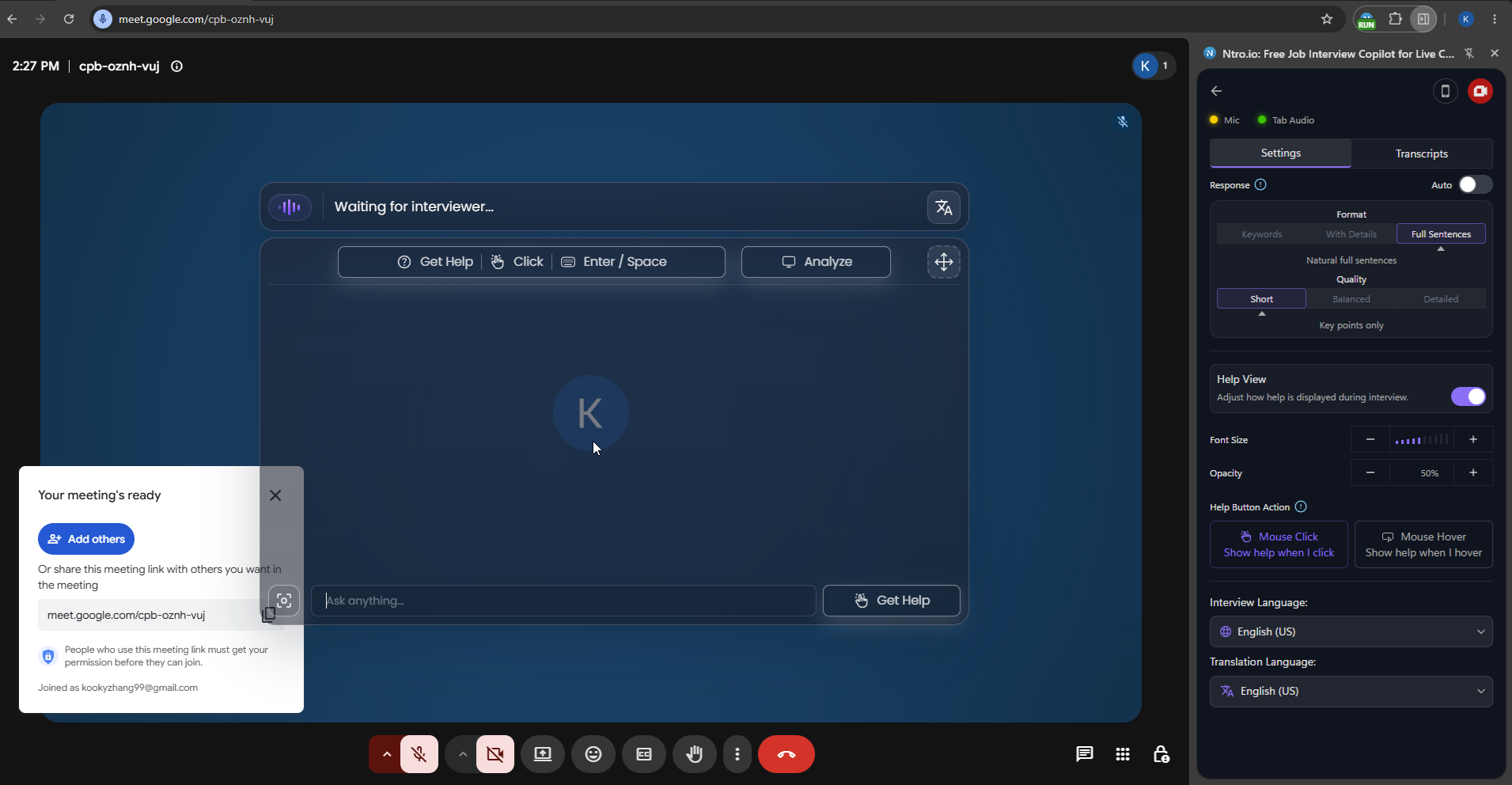
3. Start Your Interview Assistant
simulation
Simulation (Optional)
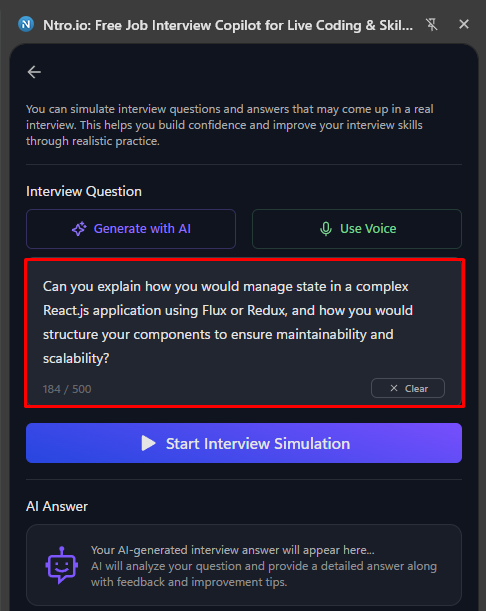
Before starting your live interview, you can practice with Simulation to experience a mock interview environment.

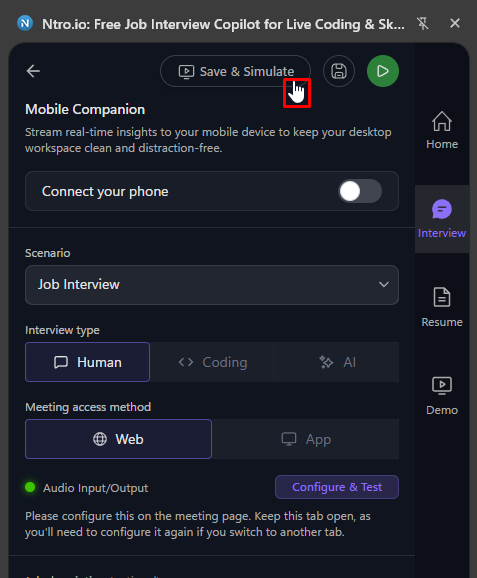
Click Save & Simulate to save your interview session and launch the simulation.

In the Simulation page, you can:    
  - Generate interview questions using AI or create questions from your own voice input.    
 - Generate AI responses for each interview question to see how the assistant provides suggestions during an interview.  

By practicing in Simulation, you can become familiar with how Ntro.io works and experience an interview workflow similar to a real interview before your live session.
1. Click Save & Simulate button
save-simulate
2. Simulate the Q&A
simulate
star
Start Your Session

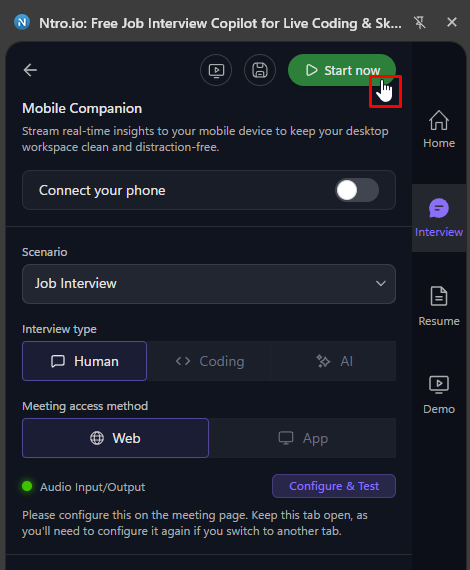
After you've finished configuring your interview session and opened your meeting, click Start Now.

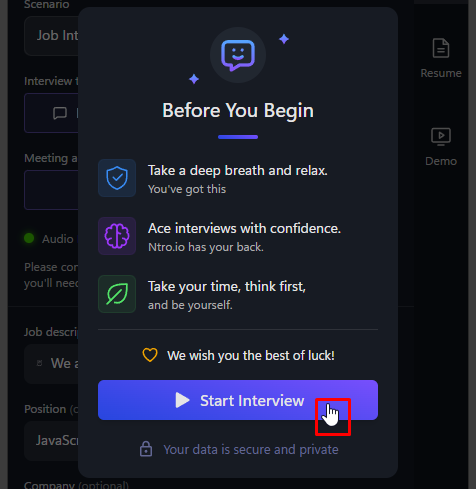
Review your settings one last time, then click Start Interview.

Ntro.io will begin listening in the background, detect interview questions in real time, and generate AI suggestions based on the conversation, without interrupting your meeting.
1. Click Start now button
start
2. Start Interview
start-1
3. Interview session started
googlemeet
setting
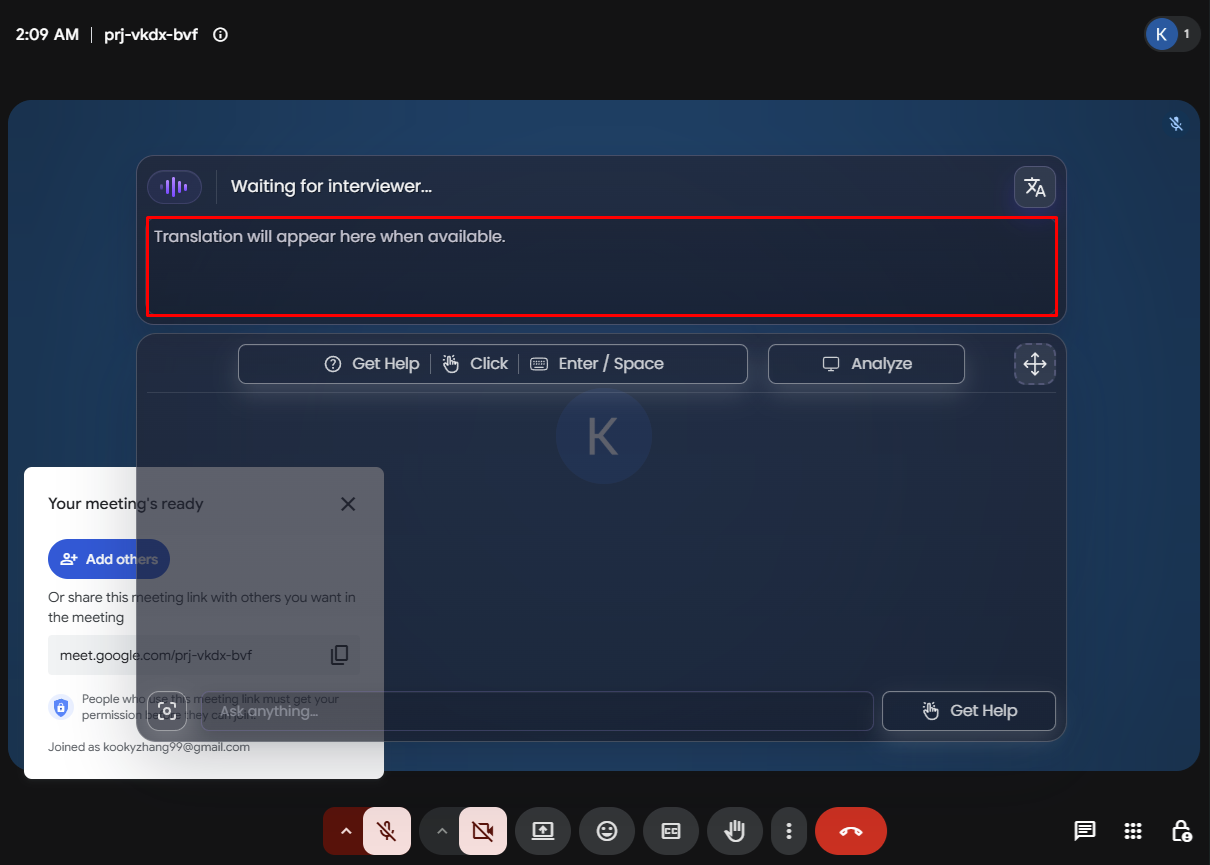
Help View panel
The Help View panel is where you interact directly with Ntro.io during your interview. From this panel, you can view translated speech, ask questions, analyze shared content, and receive AI-generated responses in real time.
Translate Speech
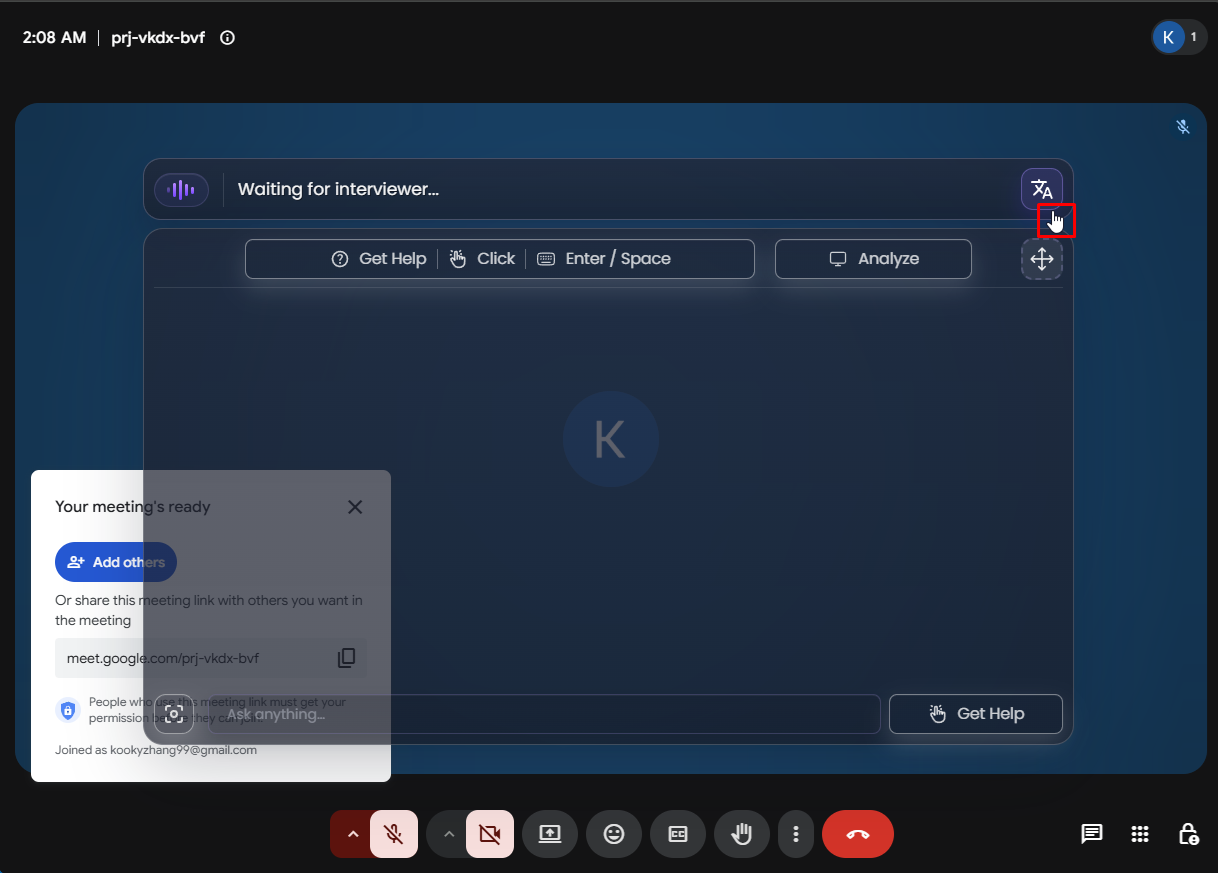
Click the Translate button in the top toolbar to display a translated version of the interviewer's speech.

The translation is shown using the language selected in your interview settings.
1. Click Translate button
connect-phone
2. Translation will be shown
scan
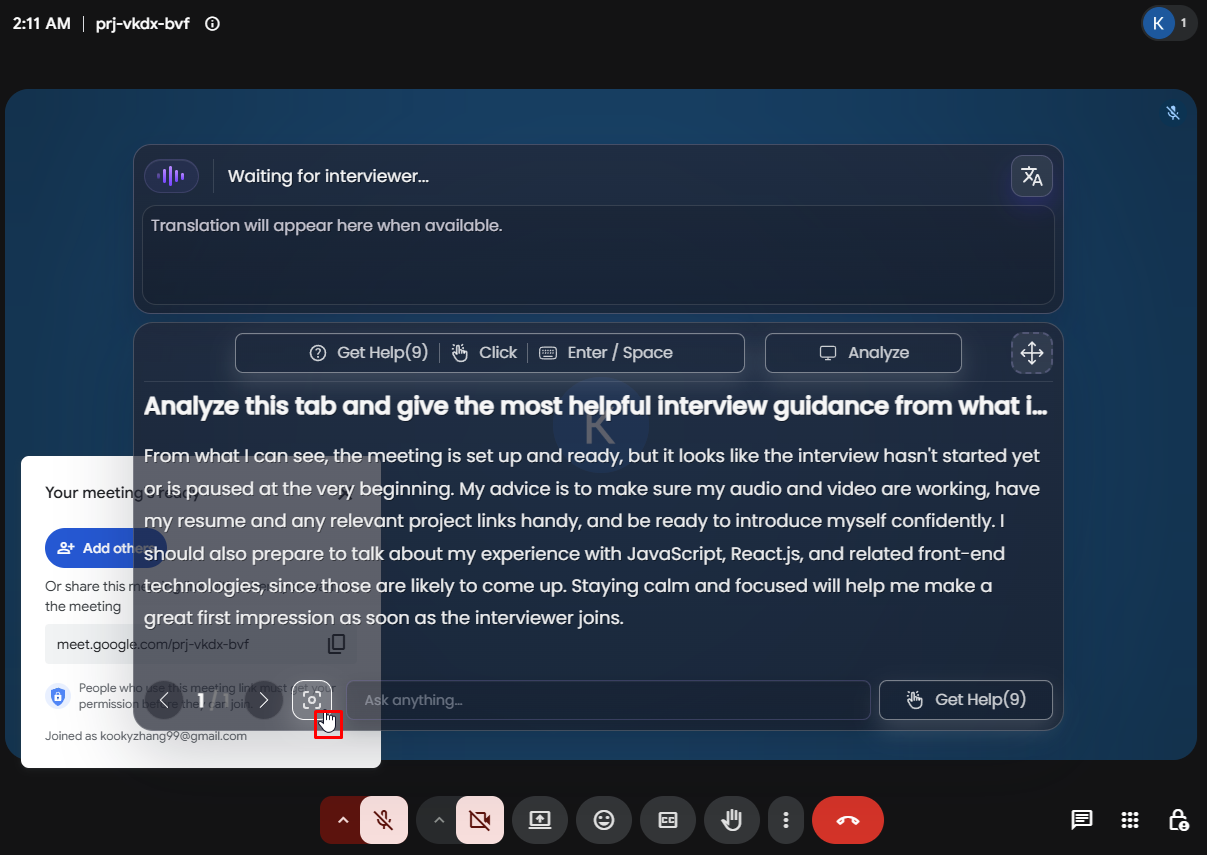
Analyze
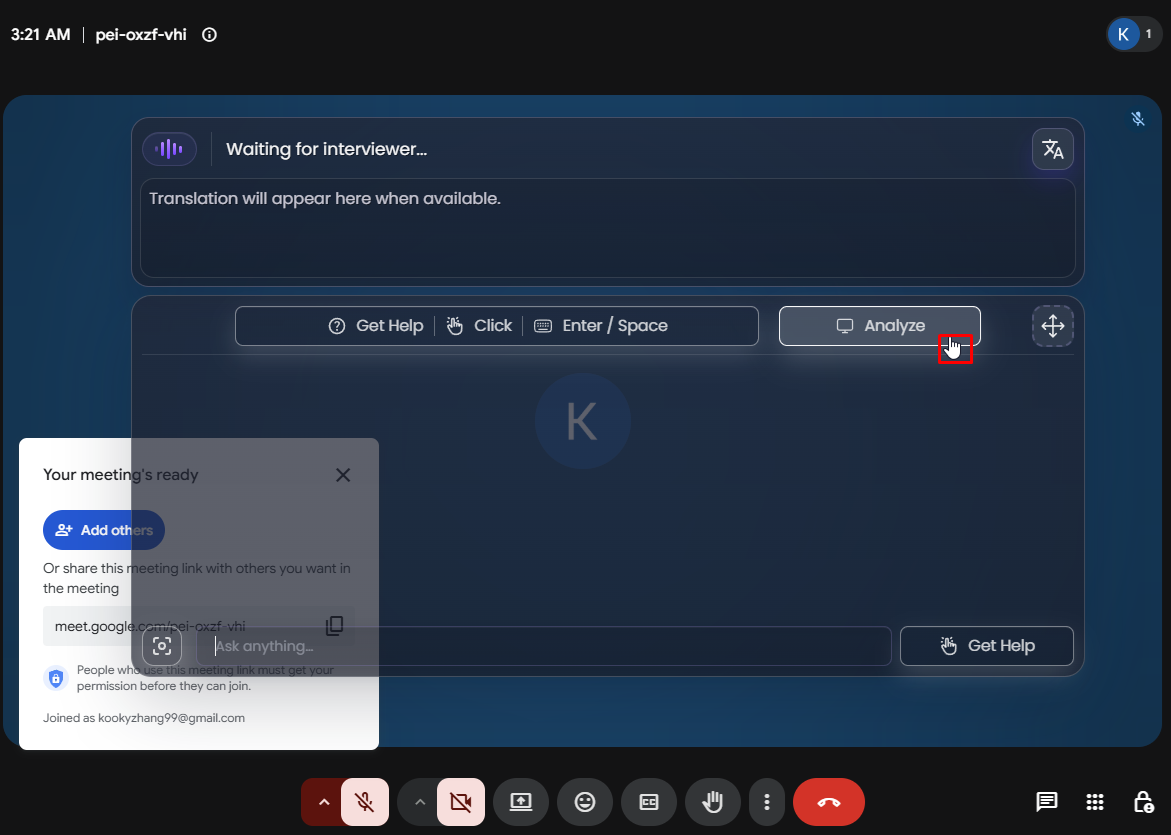
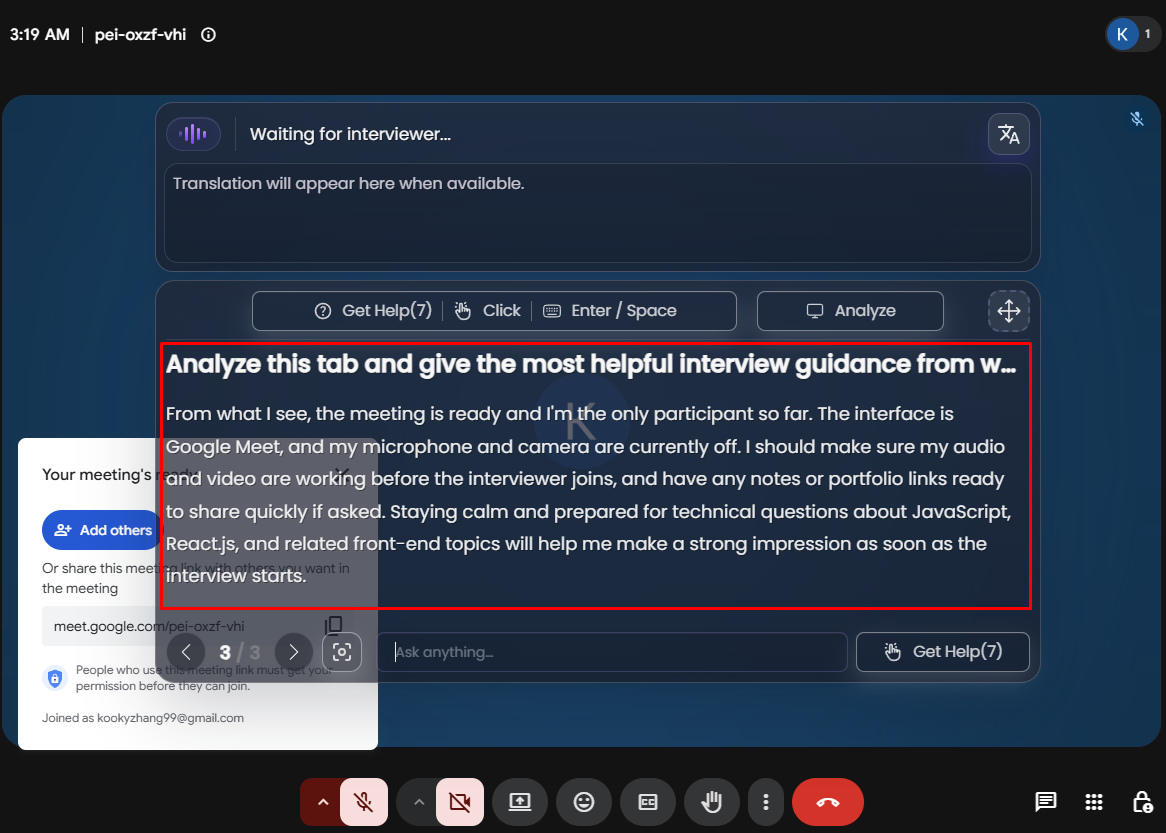
Click Analyze to generate a summary and analysis of the content in the current browser tab.

This is especially useful when the interviewer shares documents, coding challenges, presentations, or other on-screen materials.
1. Click Analyze button
translate
2. Analyzed result
choose-language
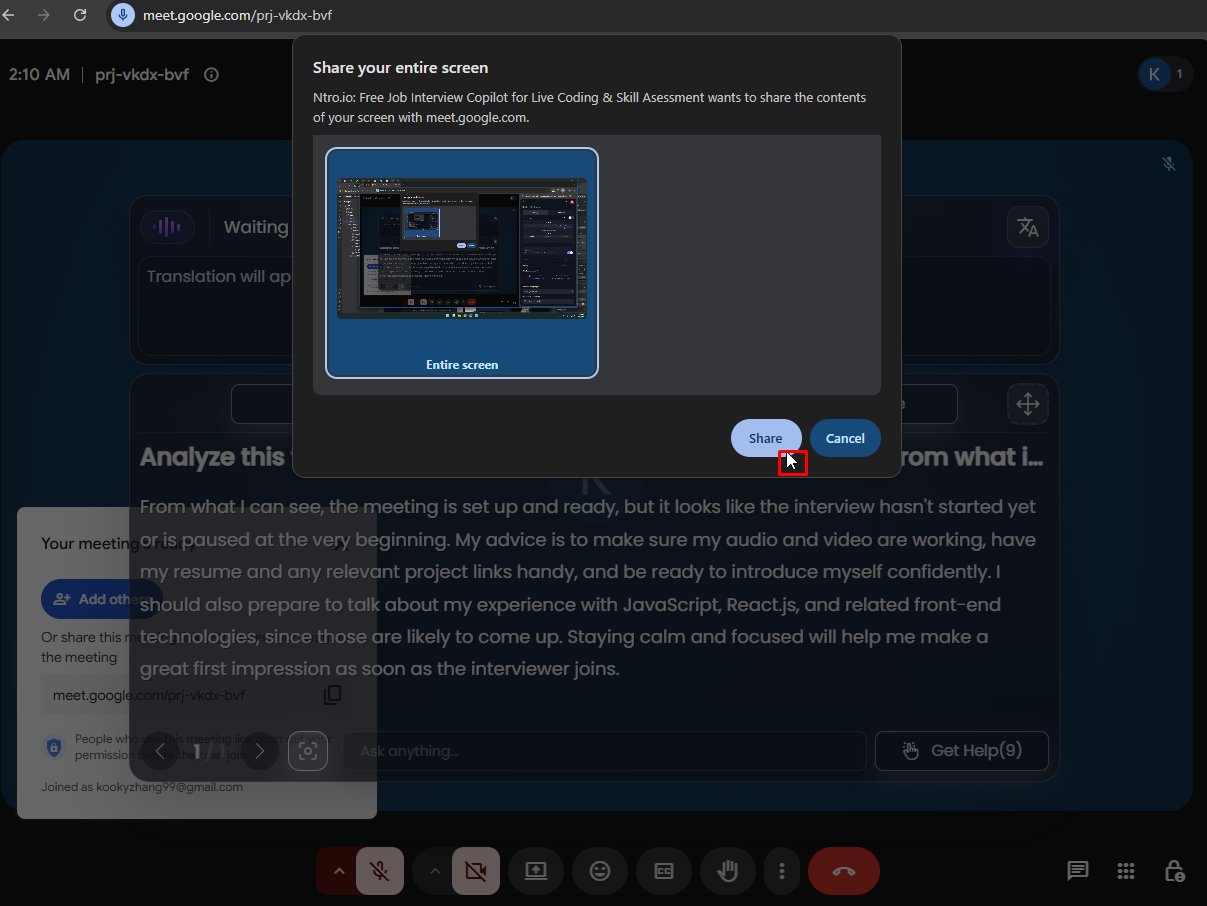
Share Your Screen
Click the Share button to share a browser tab with the interviewer.

You can share any tab that is currently open in your browser.
1. Click Share button
sharing
2. Share any tab
scenario-options
Get AI Responses
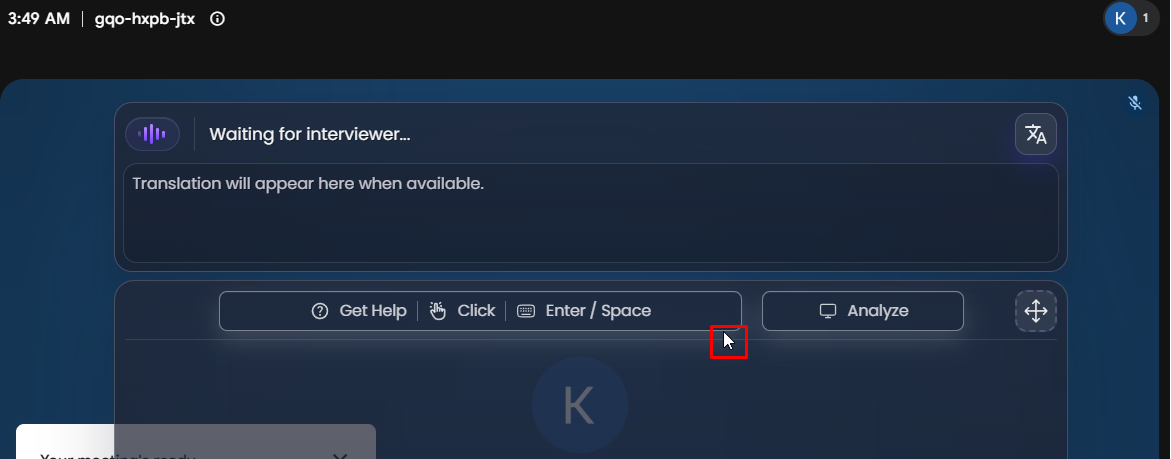
You can request AI-generated responses at any time using one of the following methods:  

- Press Enter or Space.  

- Click the Get Help button.  

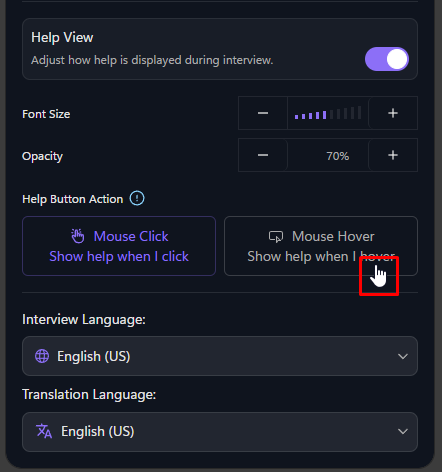
- If Mouse Hover is enabled under Help Button Action in the extension settings, simply move your cursor over the interview question to generate a response automatically.
1. Press Enter or Space
resume
2. Click the Get Help button
job-description
3. Mouse Hover enable
interview-info
Ask Anything
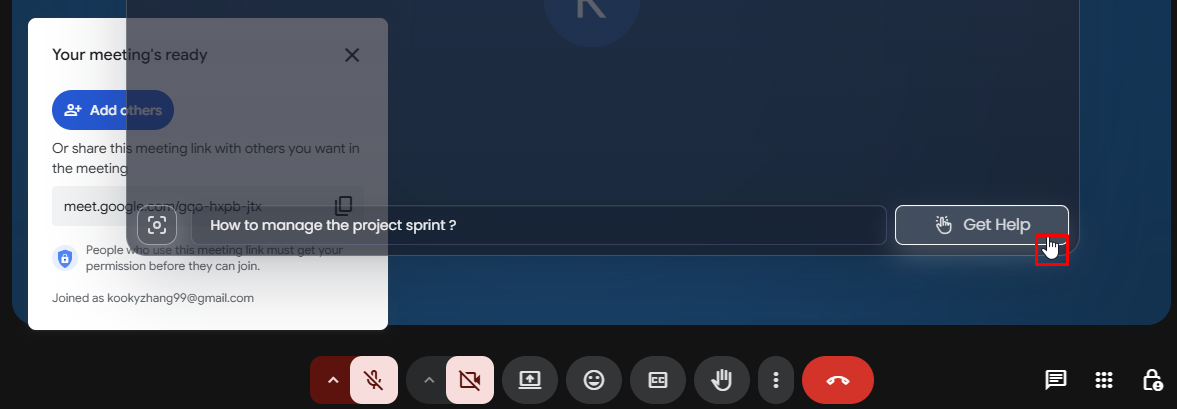
Need information about a specific topic?

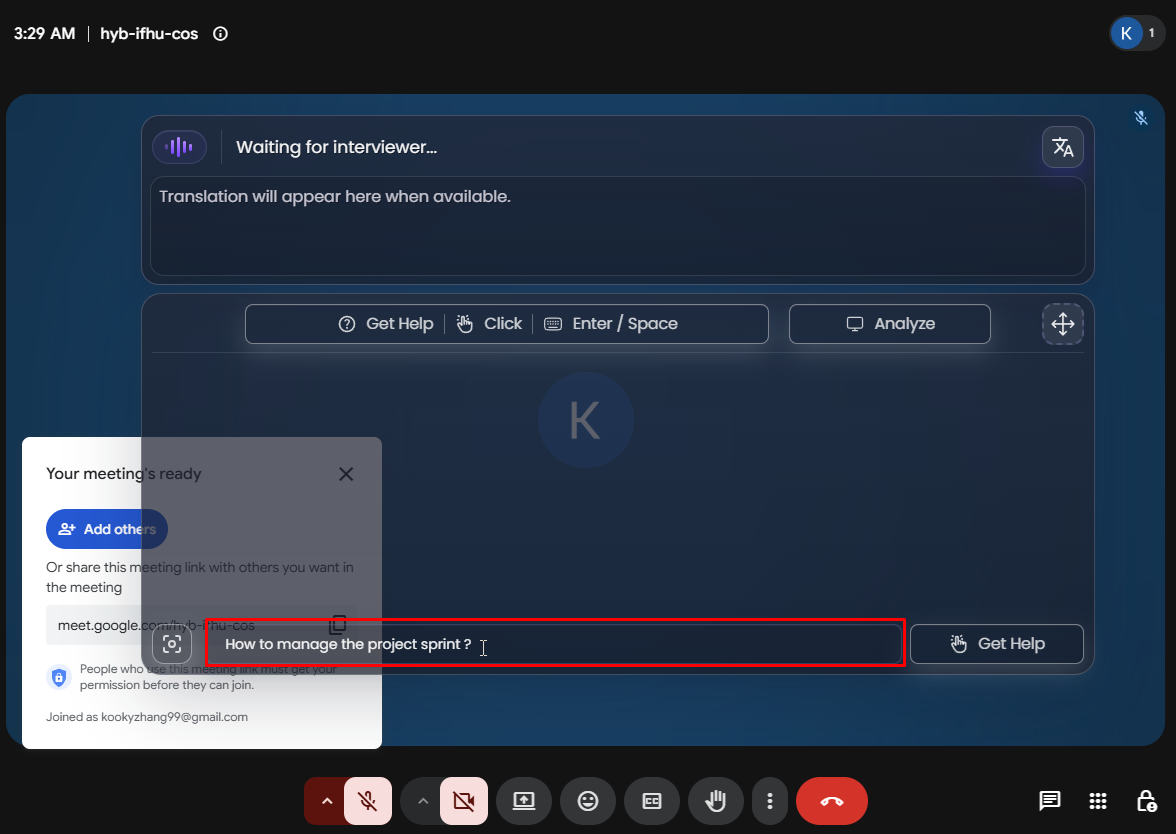
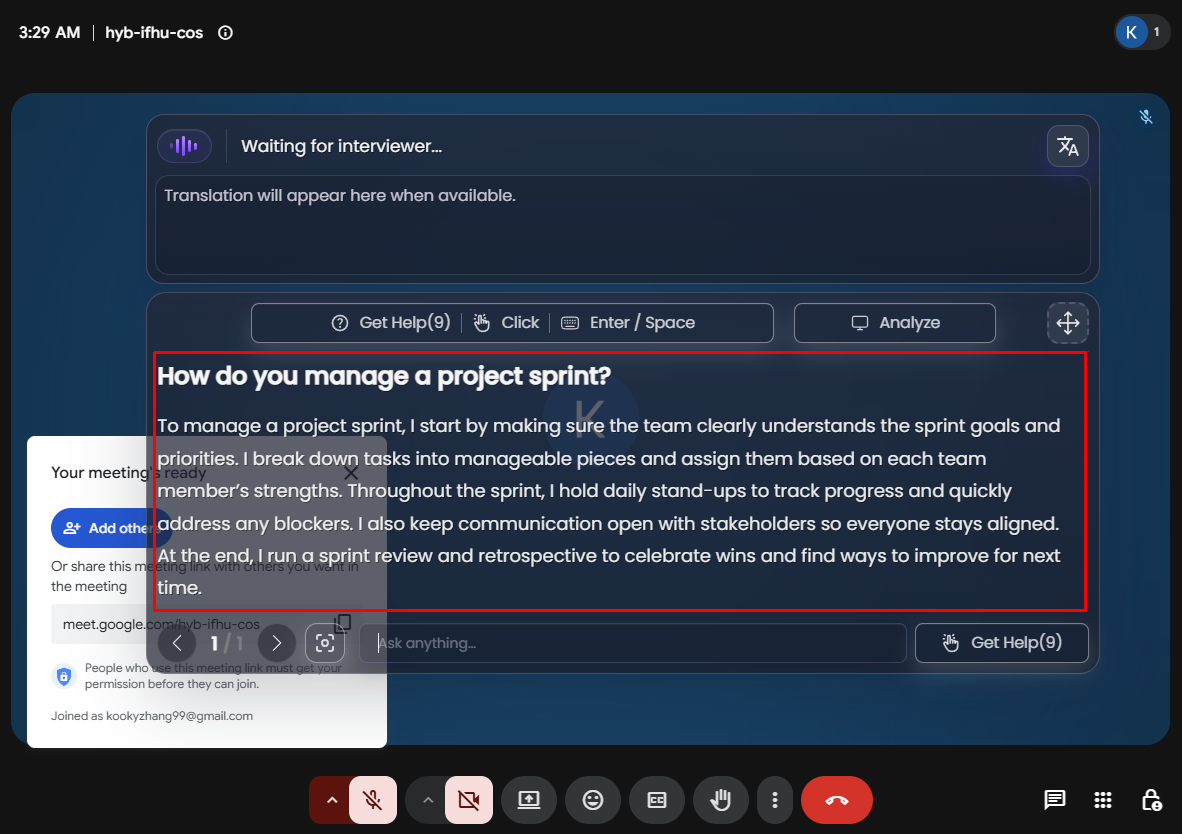
Enter your question in the Ask Anything field to receive an AI-generated response based on your question and the available interview context.
1. Enter you question in the Ask Anything field
audio-test
2. Get AI Response
test-audio
phone
Secondary insight using Phone

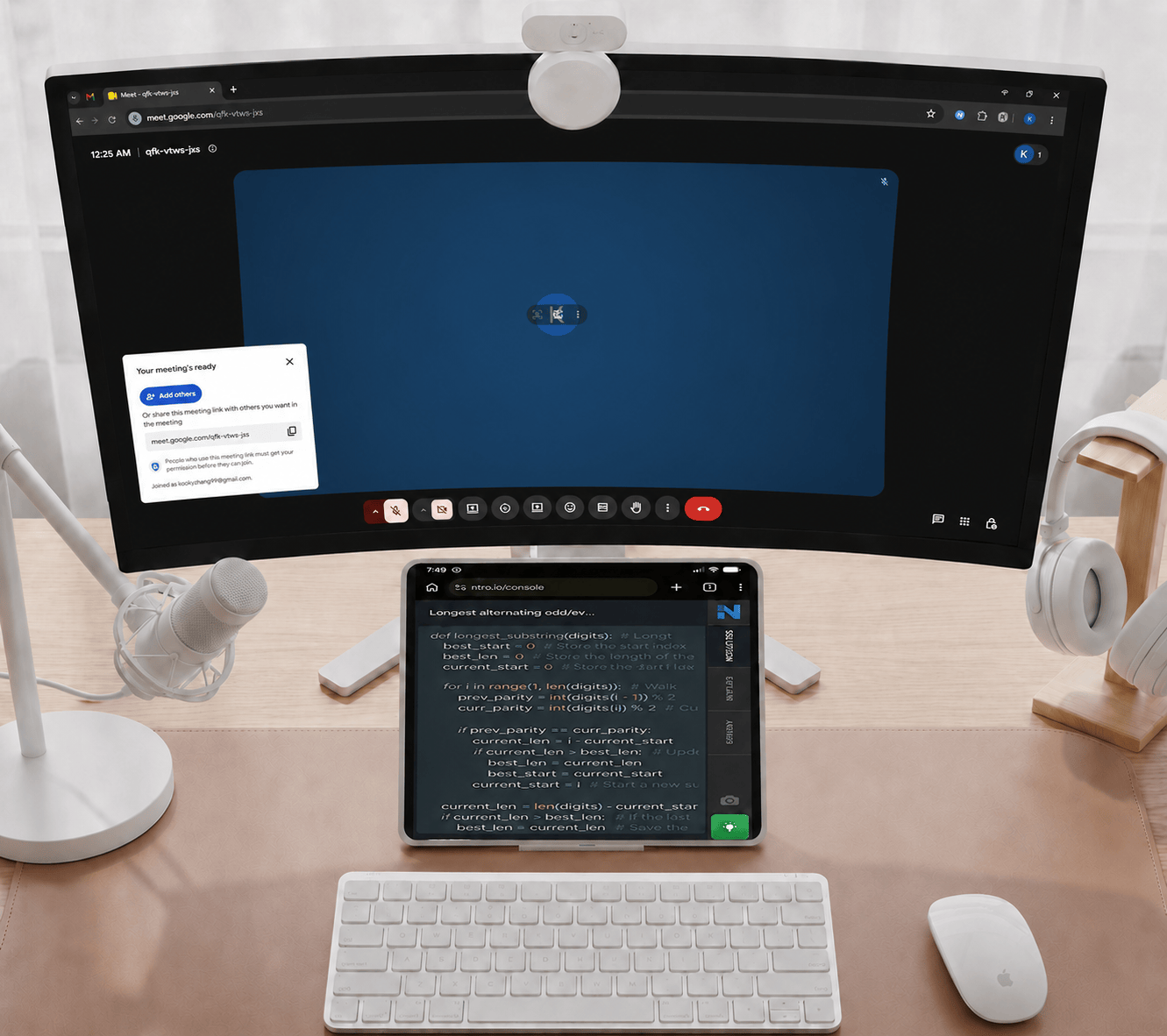
If you're sharing your browser or entire screen with an interviewer, you can use Mobile Companion to keep your desktop free of AI suggestions while still receiving assistance.  

When your phone is connected:  
 - Ntro.io captures the interview context from your desktop browser.  
 - AI-generated suggestions are delivered directly to your mobile device instead of appearing on your computer.  
 - Your desktop remains clean and distraction-free while you continue your interview.  
This setup is especially useful when screen sharing or when you prefer to view AI insights on a separate device during your interview.
Clean Desktop and AI Assistant Result in Phone
pc
4. Try it your self
Experience Ntro in a real interview
thunder
Real interview
simulation
target
See how Ntro
detects & answers
rocket
Feel the confidence
in Real-time
users
Join thousands of users
who interview with confidence