Click Ntro.io extension icon.


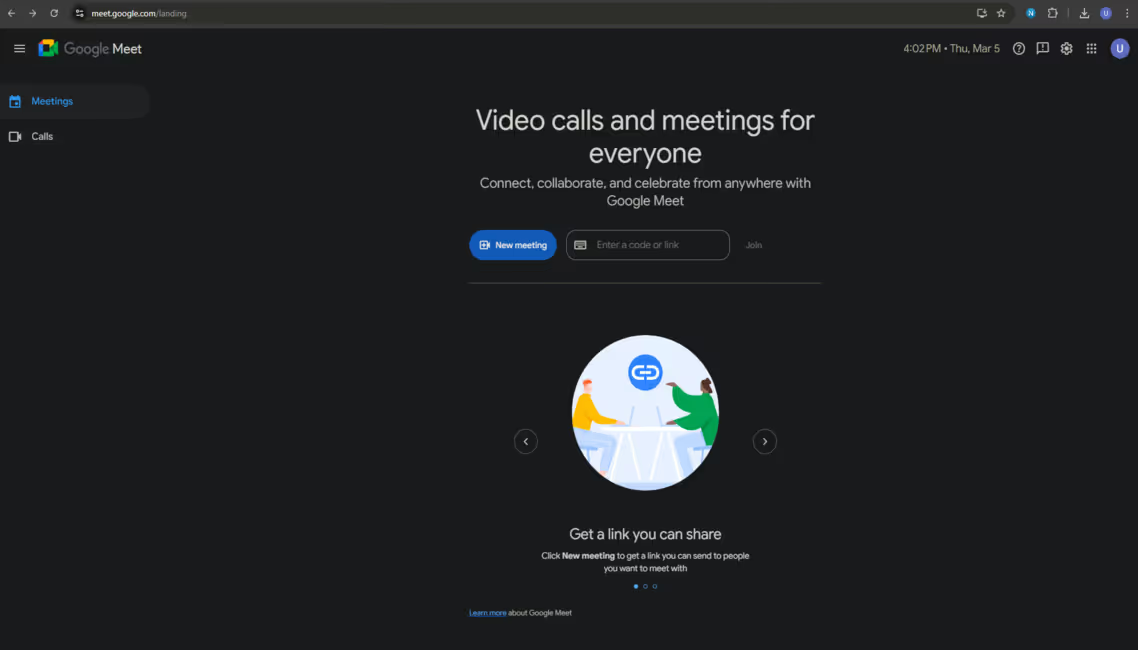
Please click the Ntro.io icon from extension bar.

Click here.
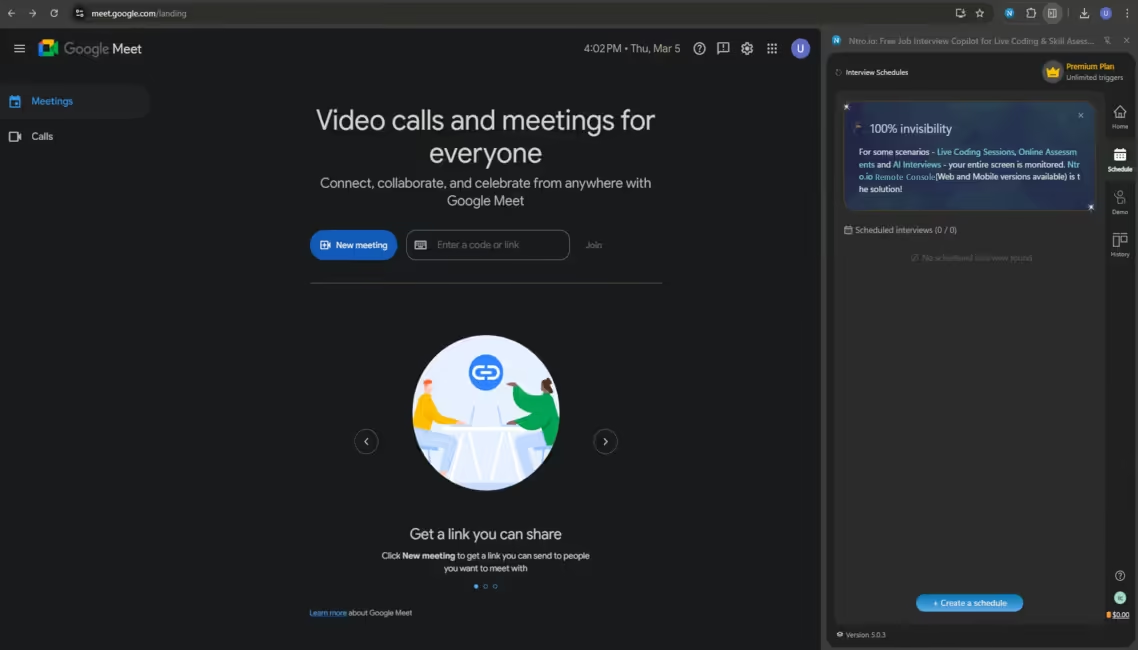
Click [Create a schedule].
Select scenario.
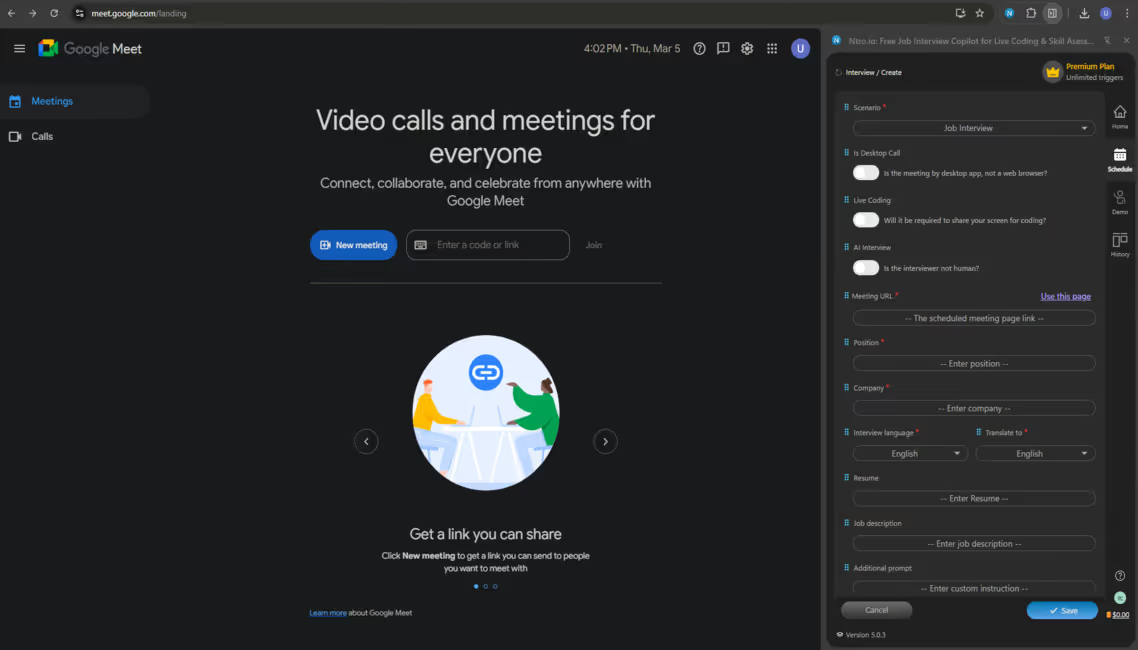
Please select a scenario.
Check interview setup.
(Enable [Live Coding] option.)
(Enable [Live Coding] option.)
Just leave as the default interview setup.
[Use this page] or manually input meeting URL.
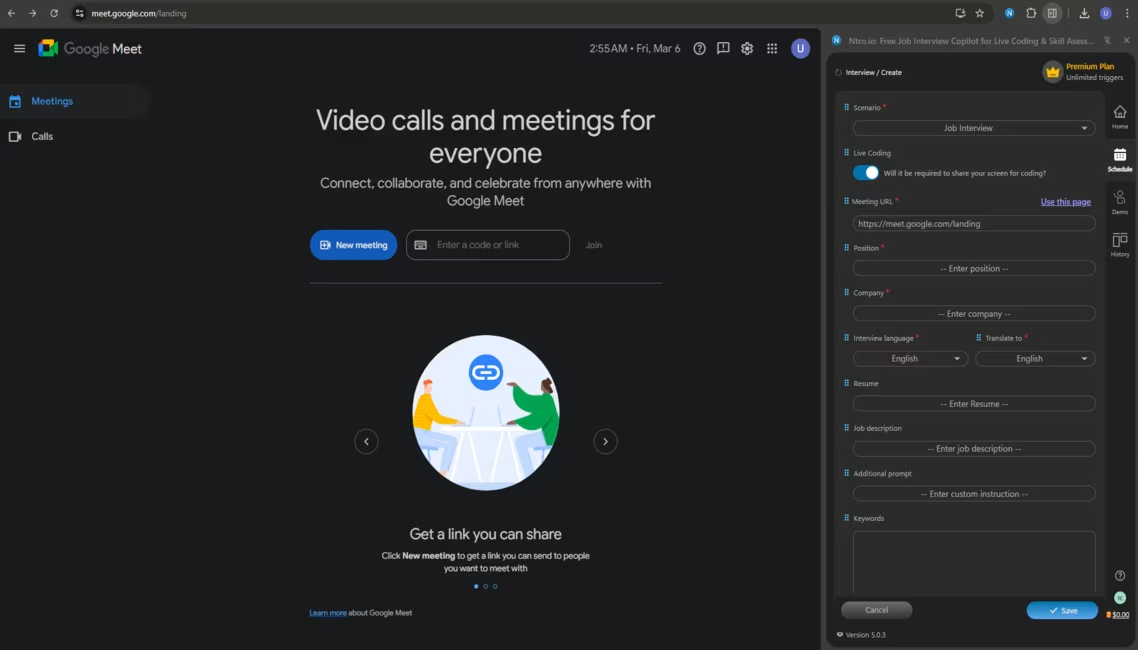
Fill in the meeting URL.
Enter the job position.
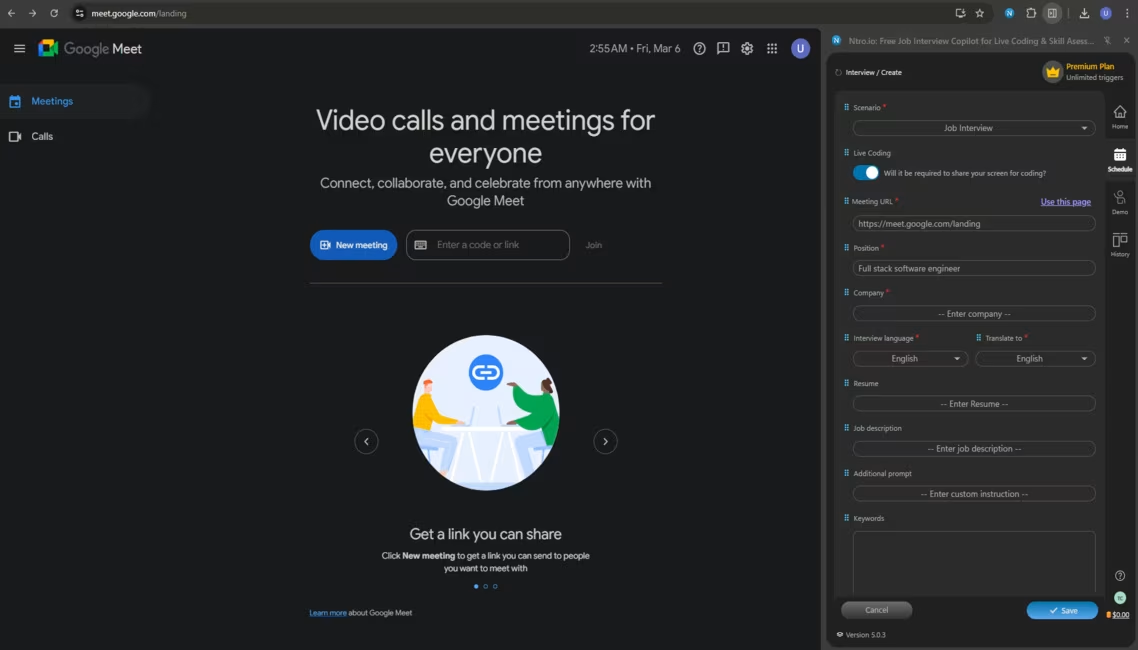
Please enter the job position you apply for.
Enter the name of the company.
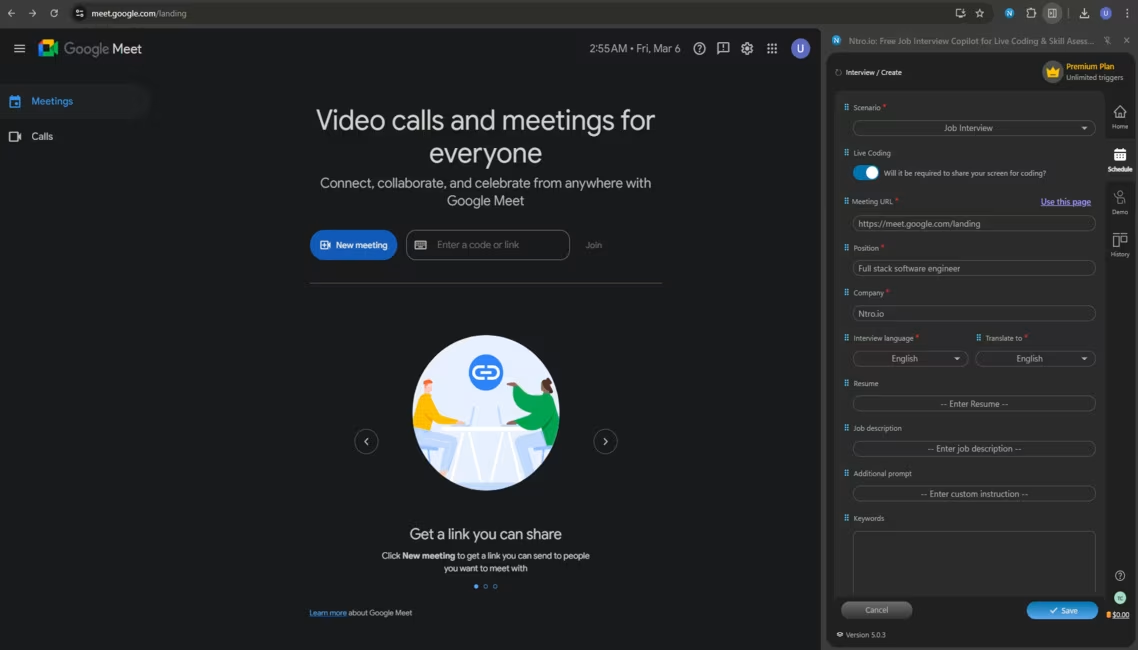
Please enter the name of the company you apply for.
Choose languages.
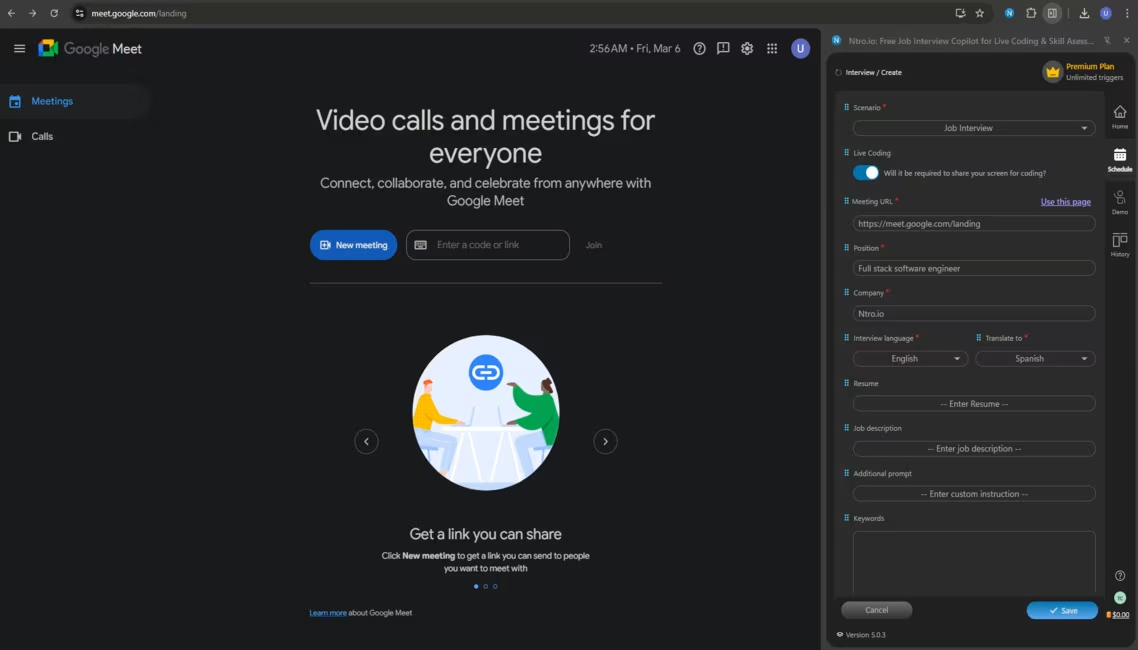
Please select interview language and your native language.
Input contextual information for tailored answers.
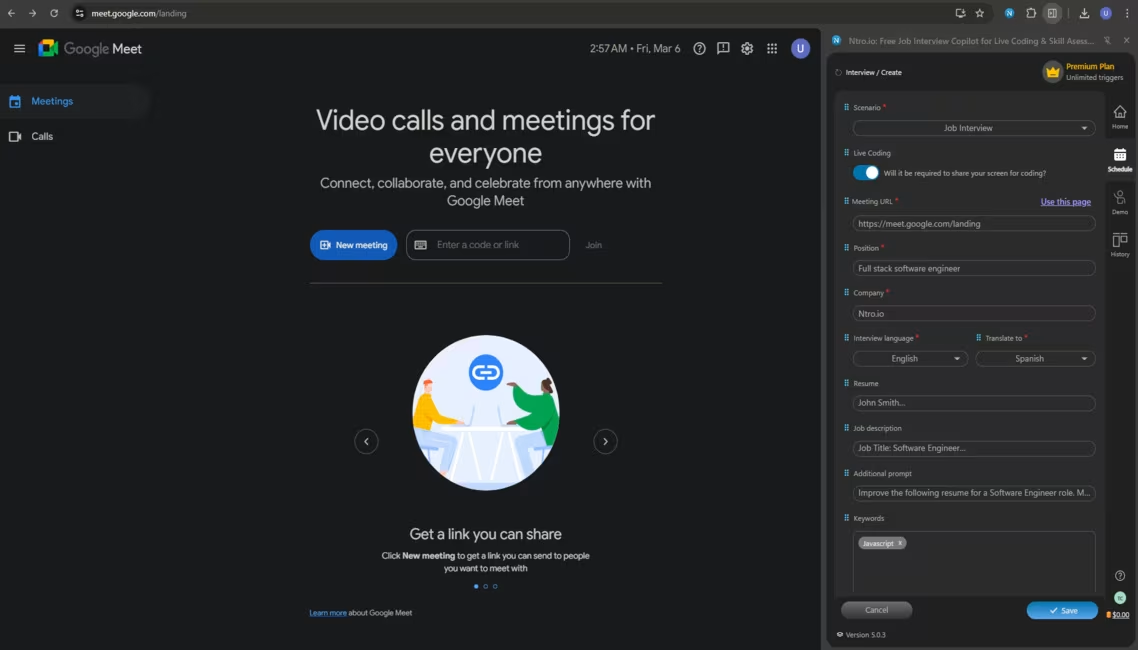
Please input your resume, JD, addtional prompt and keywords.
Click here to finish the setup.
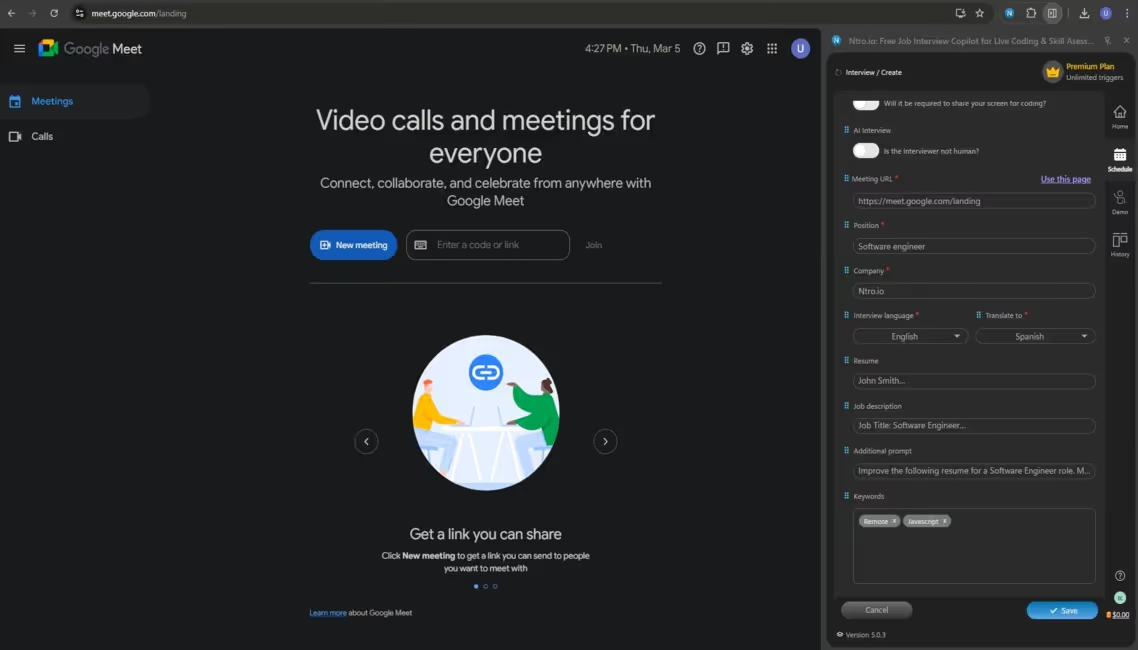
Please click [Save].
Check the new interview scheduled in the list.
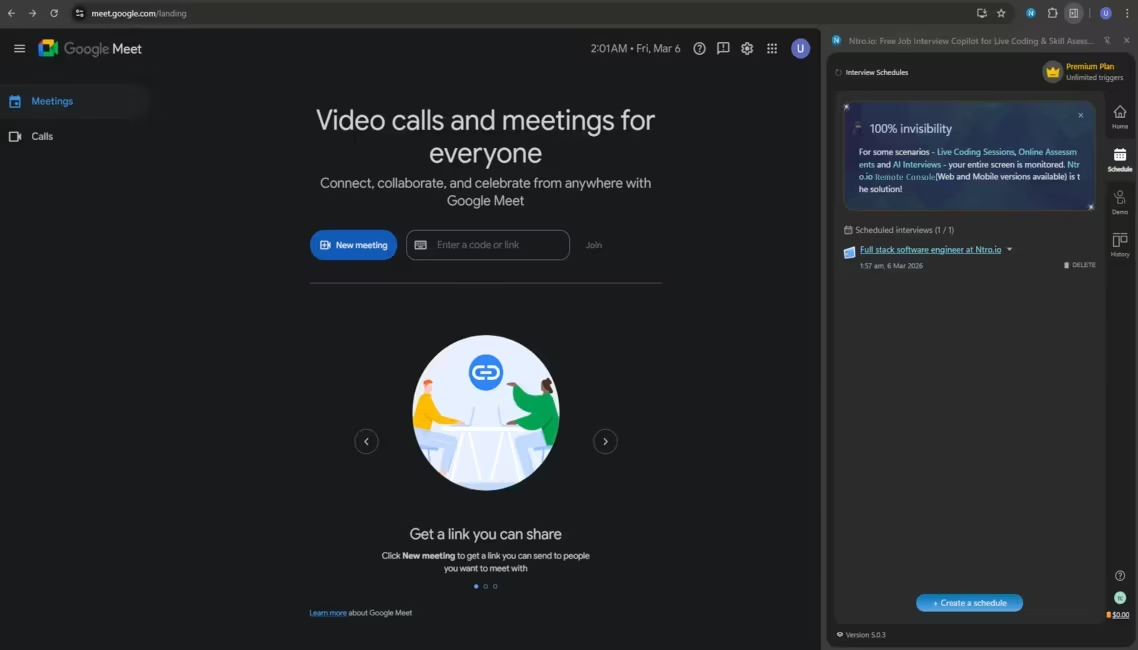
The new interview has been added in the list.
Click [Open Remote Console] before
starting the live coding session.
starting the live coding session.
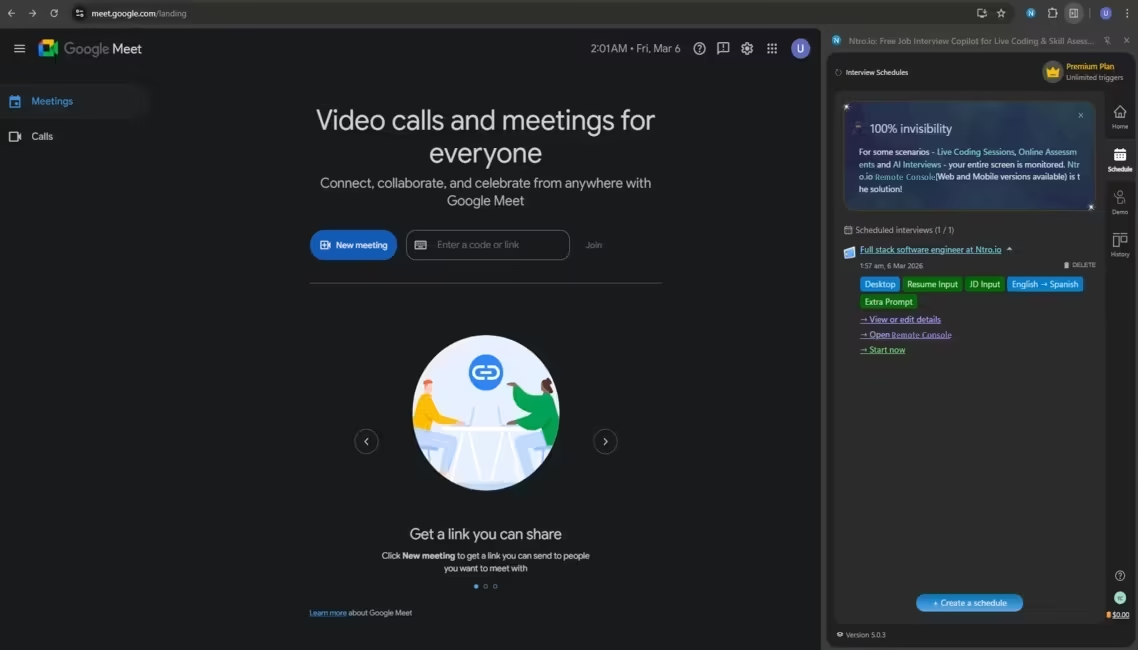
Please click [Open Remote Console] before starting.
Before diving into the interview session, please make sure Remote Console open on your mobile device or another display. Click the URL or scan the QR code to access it.
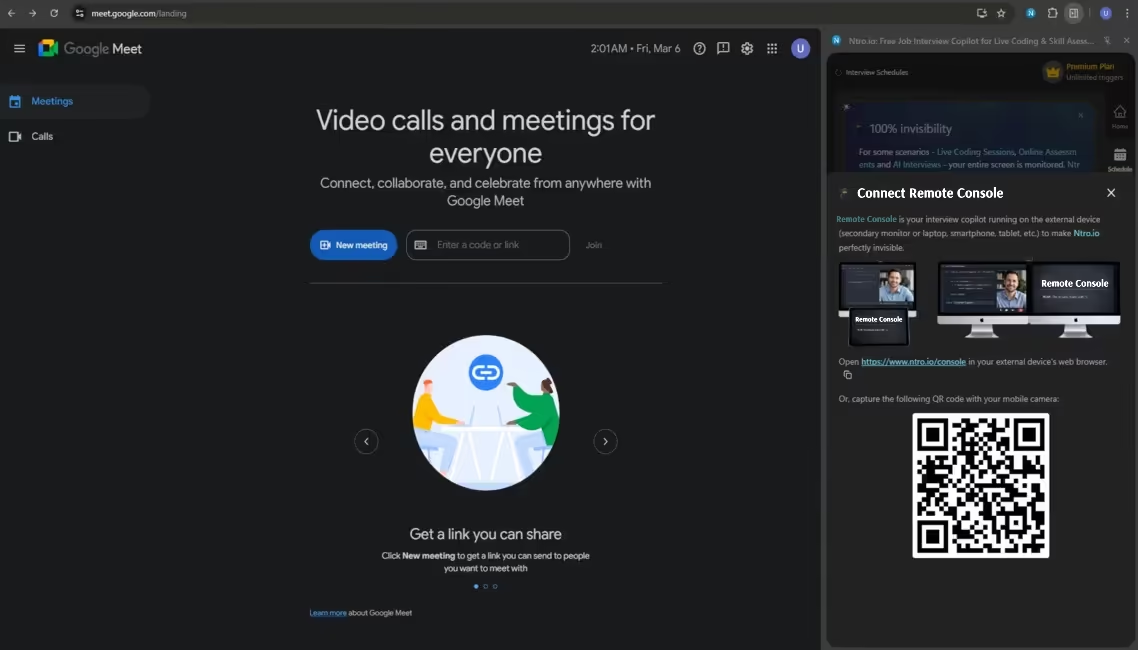
Please click the URL or scan the QR code to open the Remote Console.
Open and log in to the Remote Console
on your secondary device. (iPod or Tablet
is the most recommended option.)
https://www.ntro.io/consoleon your secondary device. (iPod or Tablet
is the most recommended option.)
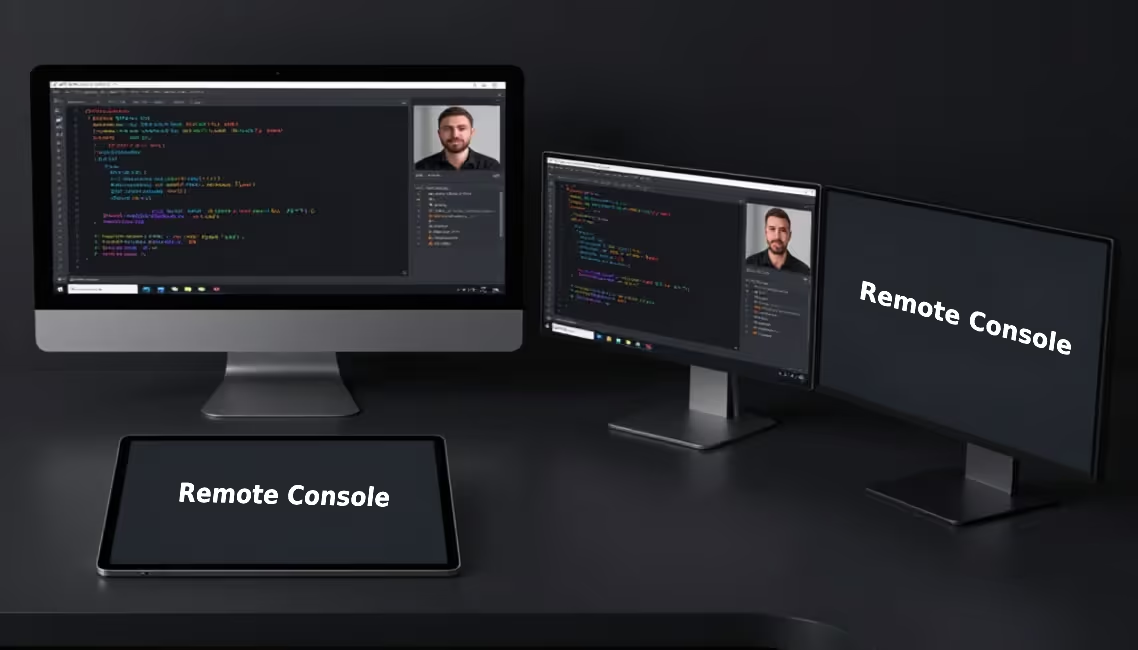
Open and log in to the Remote Console.
Expand and click [Start now].
Make sure you're in the correct meeting page.
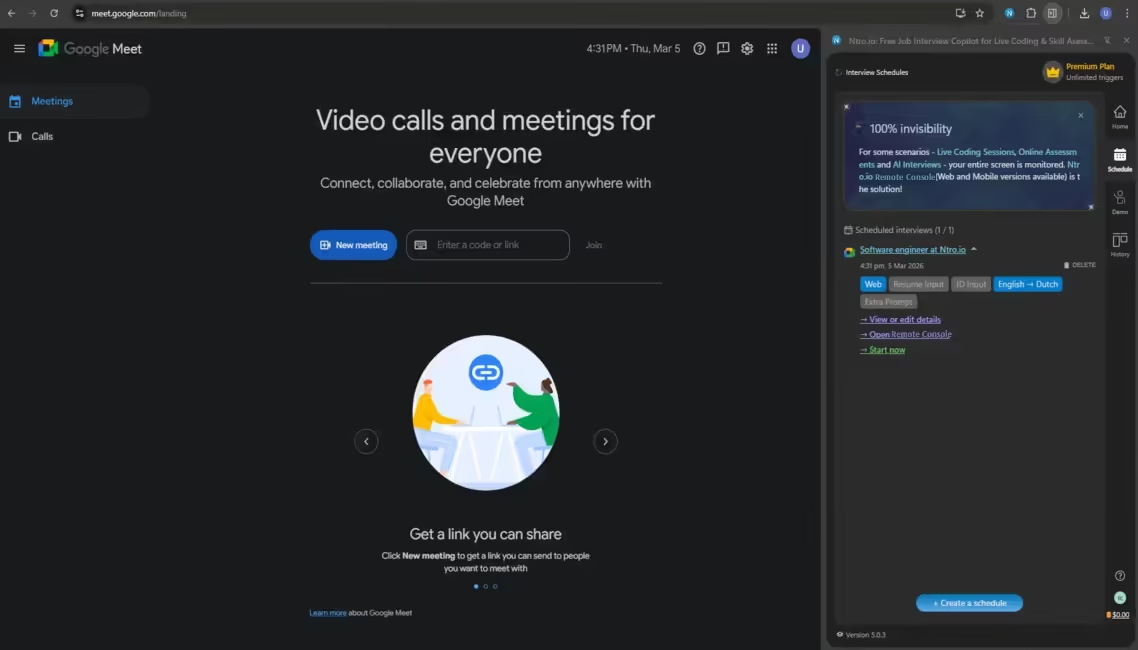
Please click [Start Now] to start interview.
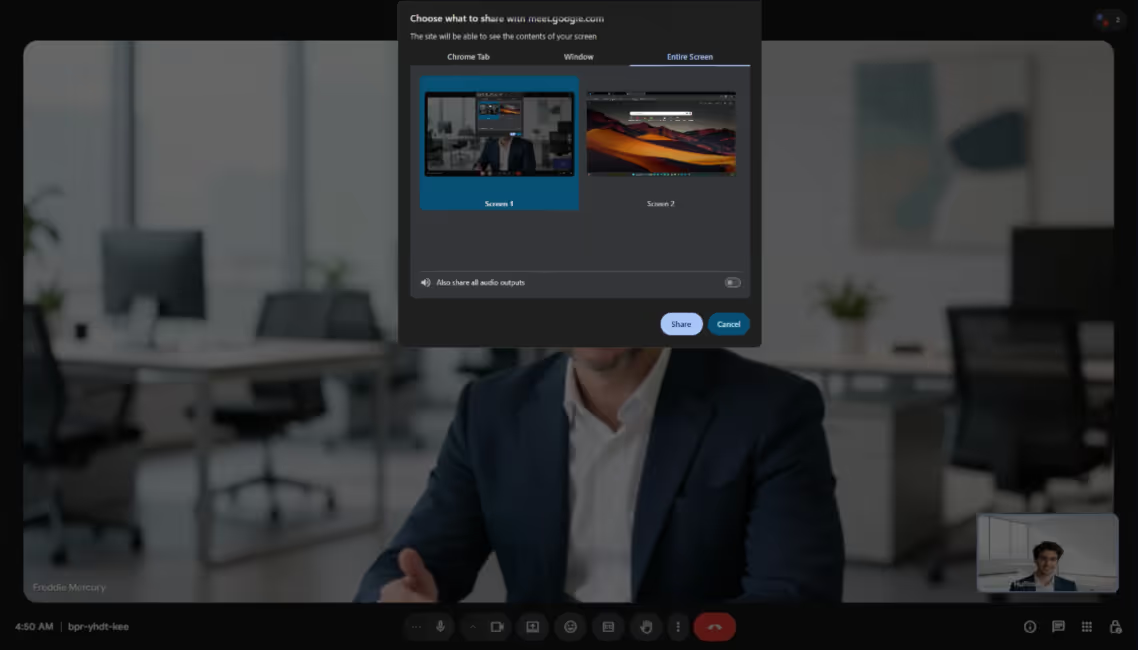
Select the screen where
live coding would be
processed.
live coding would be
processed.
Please select the screen to share with Ntro.io.
Click [Share].
Click [Share].
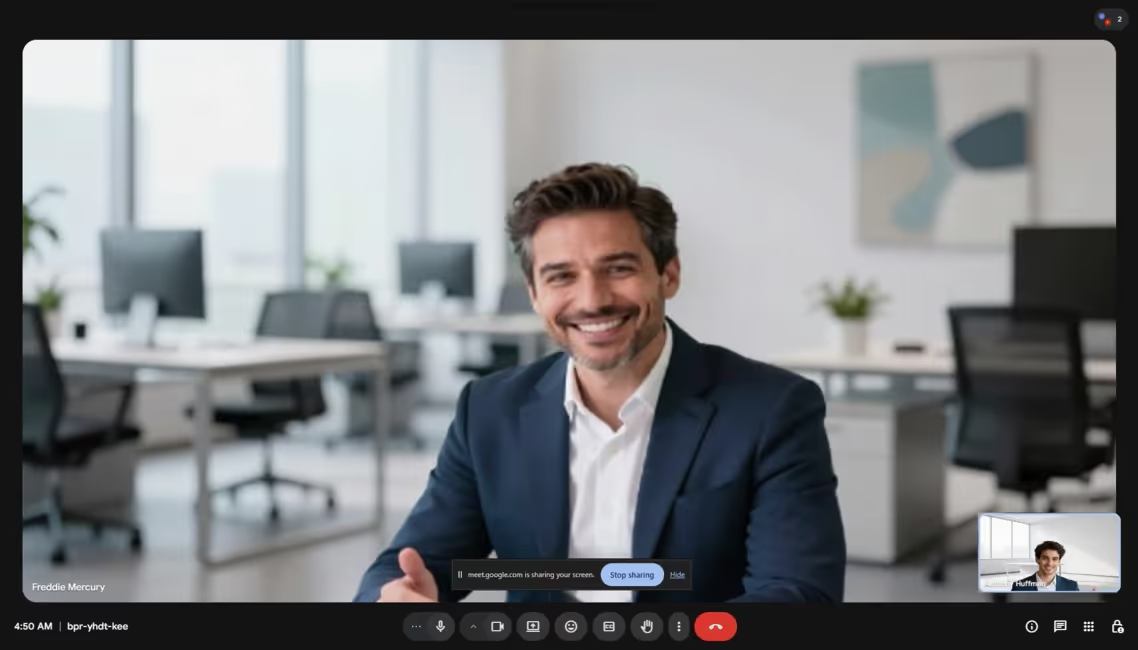
Click [Hide] to hide
this widget.
this widget.
Hide the screen-sharing widget.
The interviewer will ask some
questions in the meeting
before the live coding session.
questions in the meeting
before the live coding session.
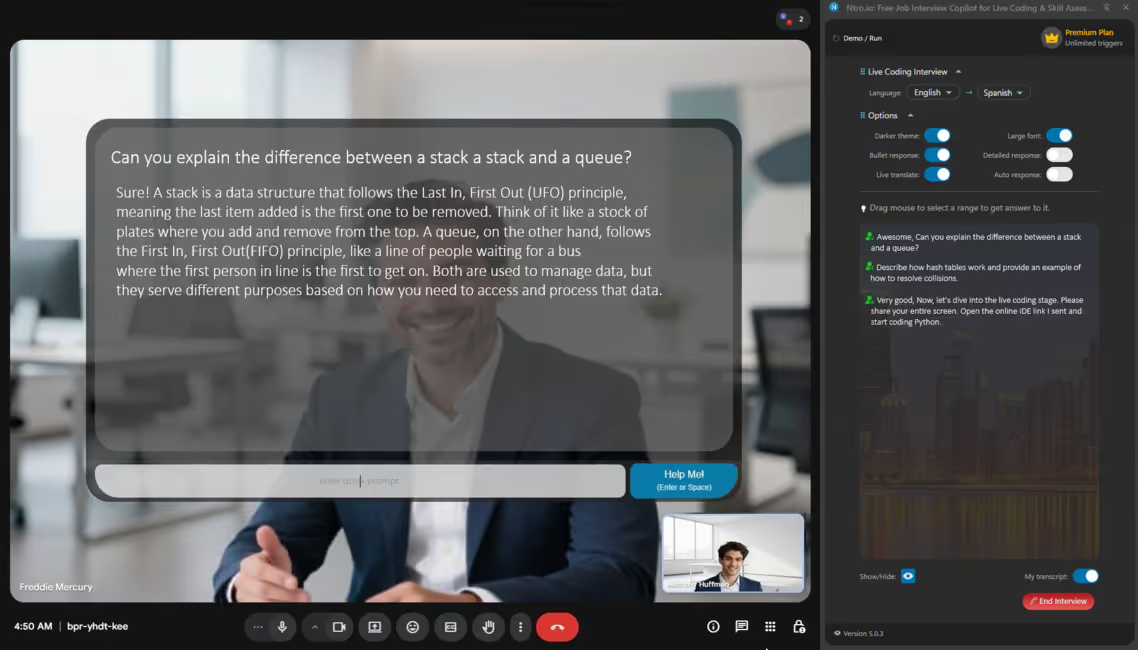
The interviewer will ask some questions in the meeting before the live coding session.
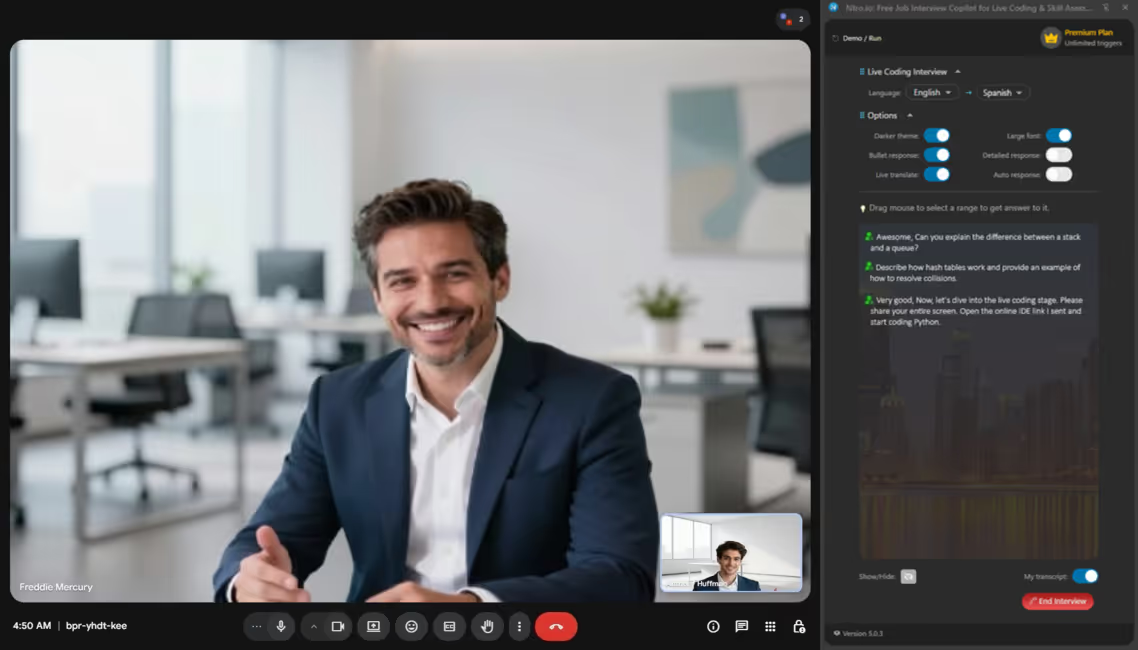
If interviewer asks to share
your entire screen, click here
to hide the runtime copilot
window.
your entire screen, click here
to hide the runtime copilot
window.
Please click [Show/Hide] to remove the Runtime Window.
Hide the copilot panel.
Please hide the copilot panel.
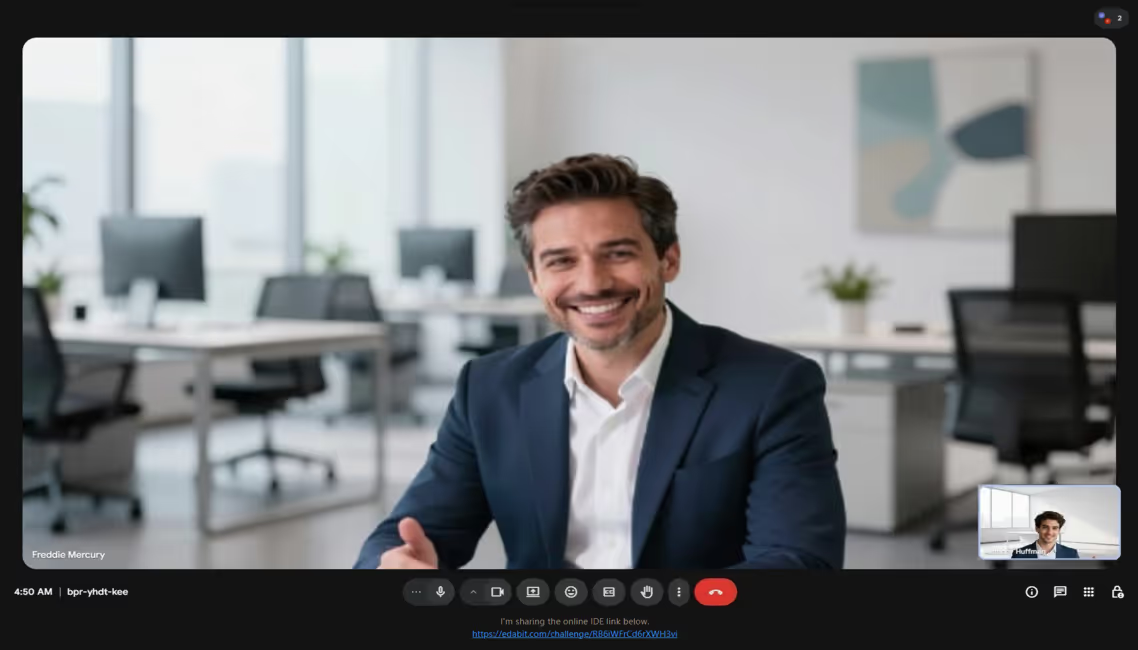
Go to the live coding page following the
interviewer's instruction.
interviewer's instruction.
Go live coding as the interviewer instructs.
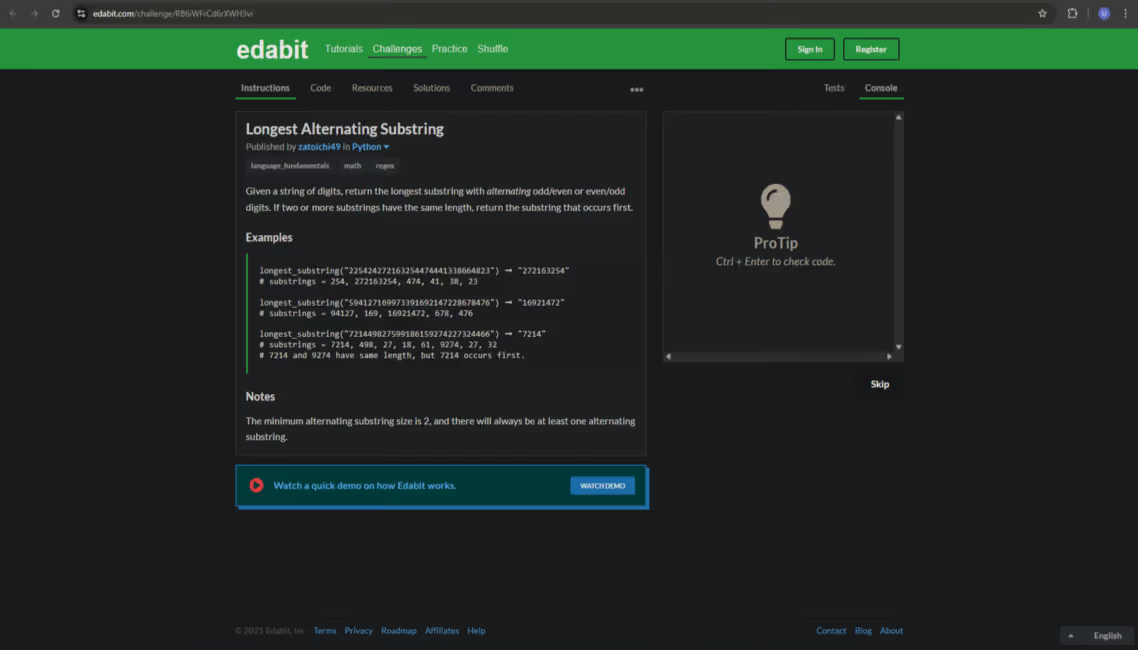
Ntro.io is seeing the live coding screen in the background.
No worries. Ntro.io is still with you in the background.
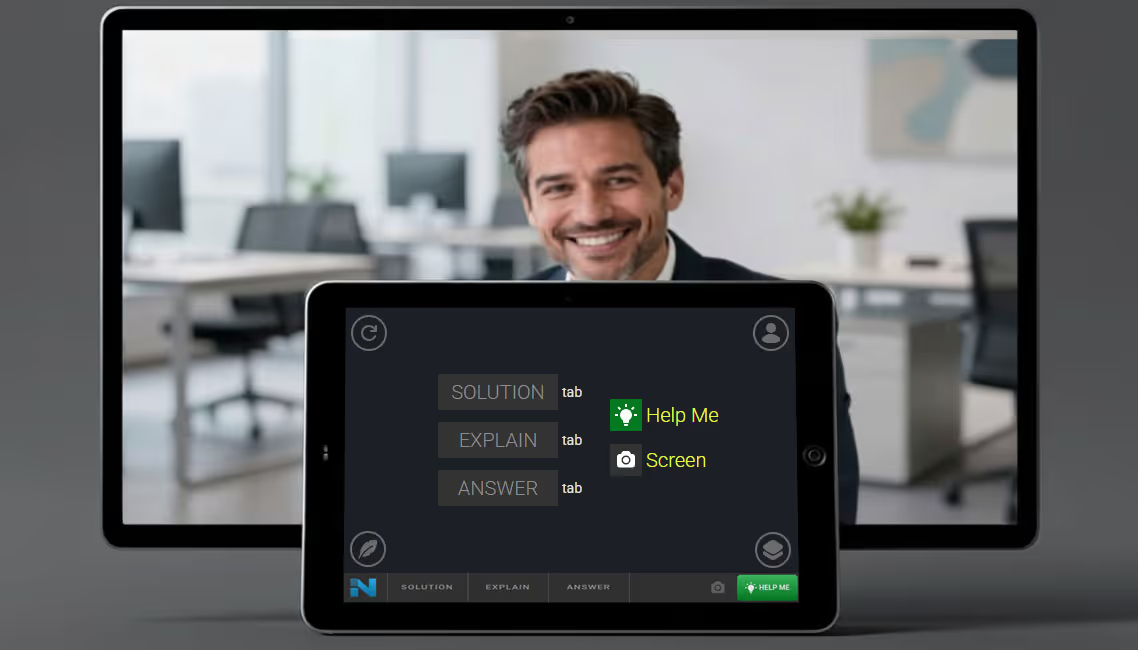
The Remote Console is connected to
the session monitoring the shared
screen.
the session monitoring the shared
screen.
The Remote Console is live.
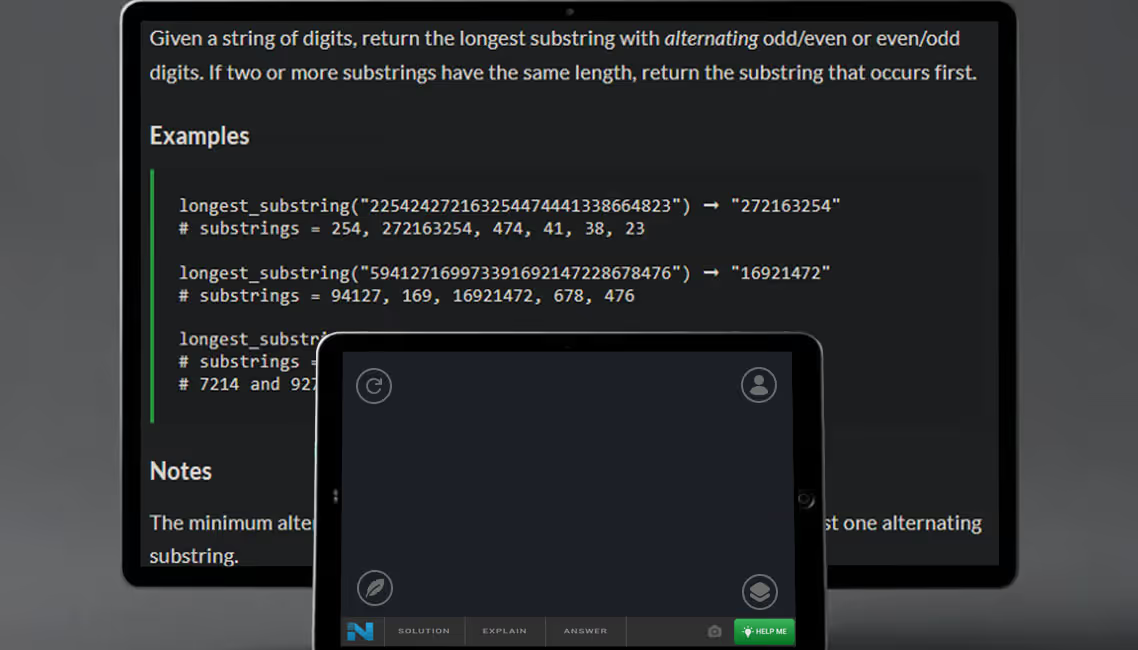
To get the solution for the task, click [Screenshot] to capture the screen.
Click [Screenshot].
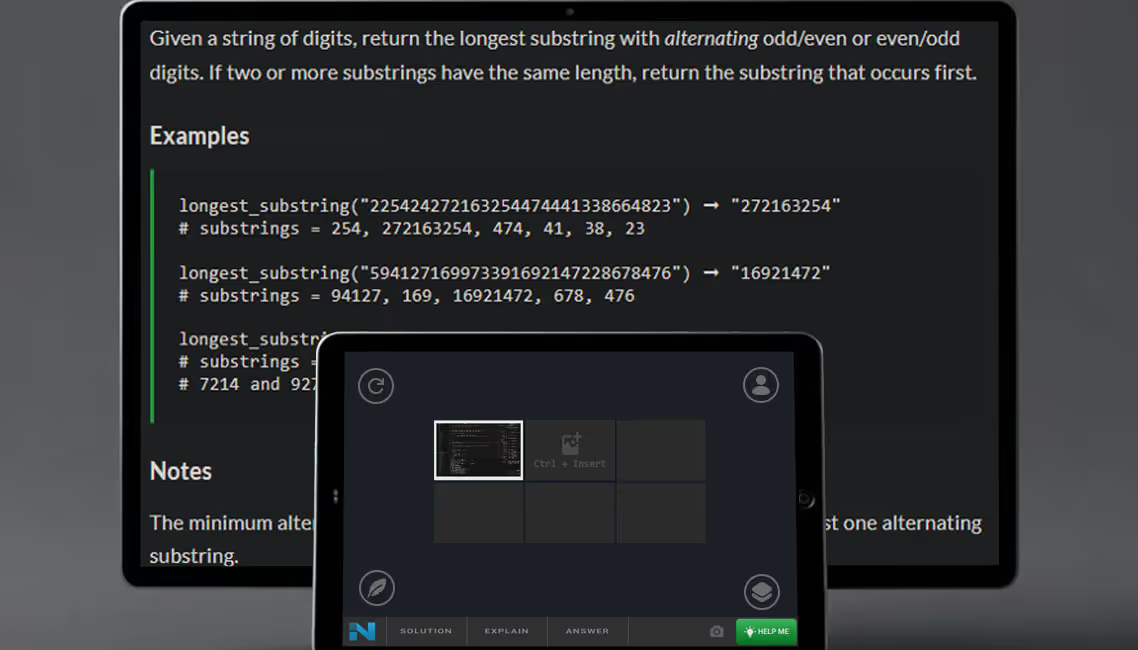
If you need to combine multiple
screens to get a solution, please
take multiple screenshots by scrolling or navigating the pages.
screens to get a solution, please
take multiple screenshots by scrolling or navigating the pages.
Multiple screenshots are supported.

Ntro.io understands the task from the captured screenshot.
Ntro.io understands the task.
Click [Code] to get
a solution code.
a solution code.
Click [Code] to get a solution code.

Awesome!
The Remote Console helps you with the correct solution for the problem.
Please get the solution.
Click [Explain] to get a answer of interviewer's question.
Respond to the interviewer's question regarding the visible task or solution.

Great!
(You can quickly click [Code] if
a single screenshot is enough.)
a single screenshot is enough.)
Quick [Code] with a single screenshot is also supported.
Congrats, Good Luck with Your Interviews!
Finish

Finish.




.avif)