Click Ntro.io extension icon.


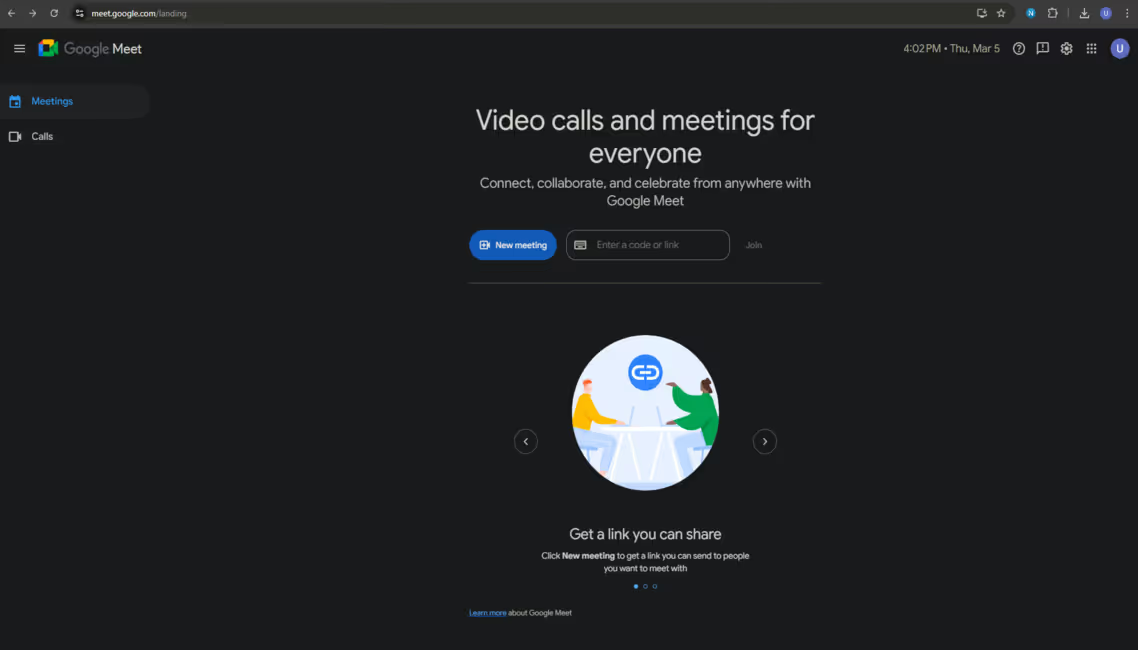
Please click the Ntro.io icon from extension bar.

Click here.
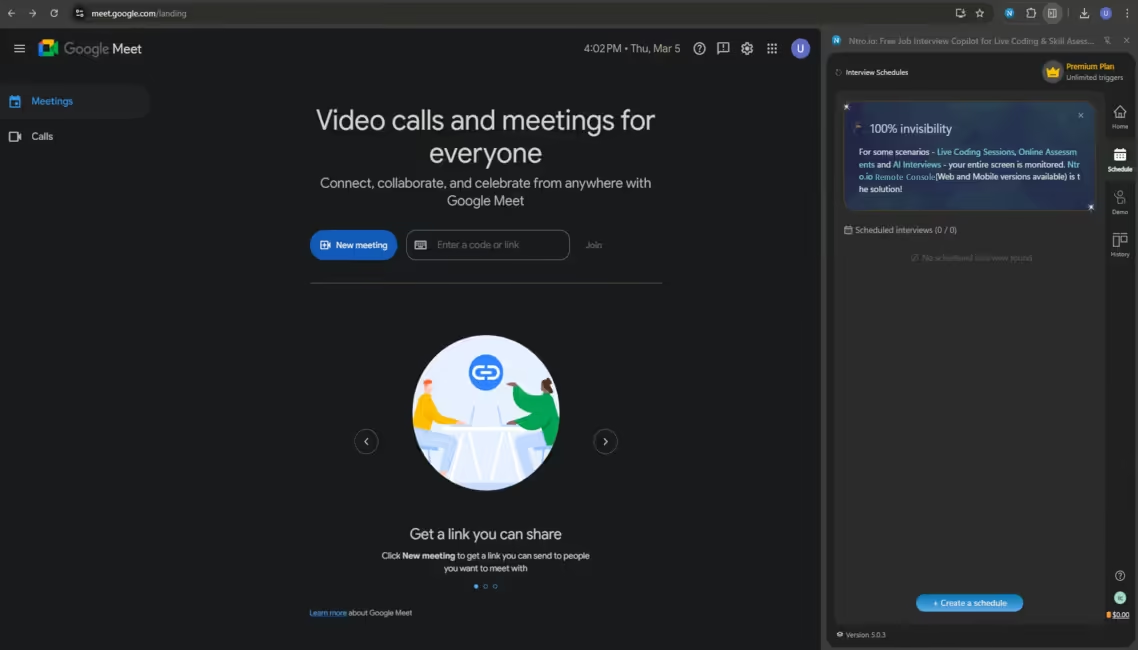
Click [Create a schedule].
Select scenario.
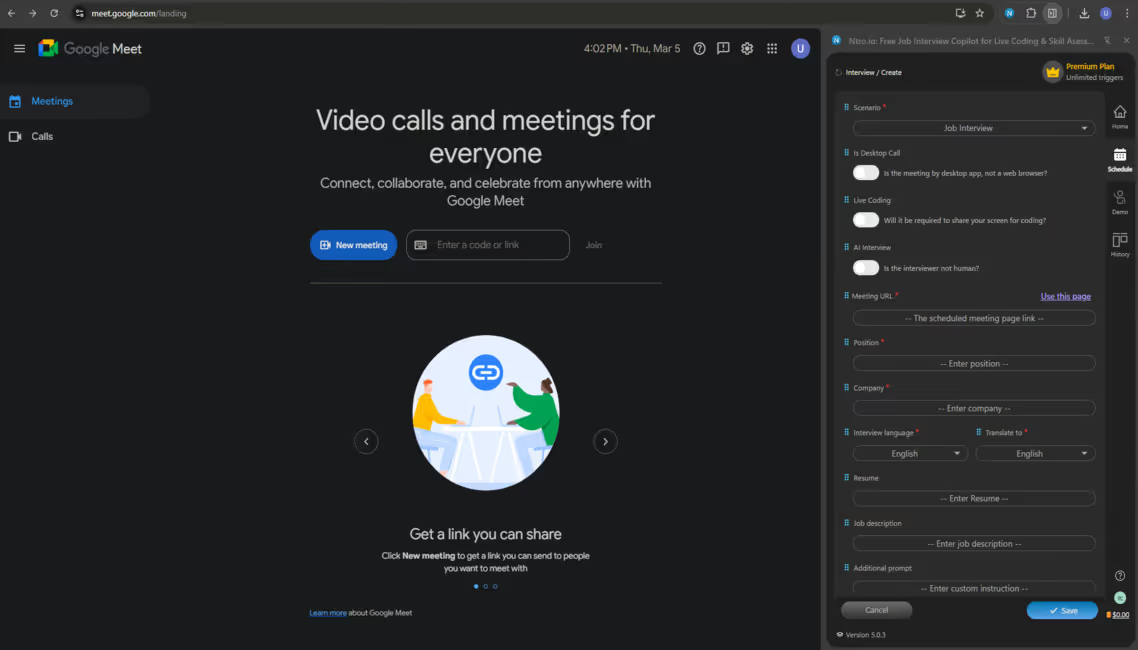
Please select a scenario.
[Use this page] or manually input meeting URL.
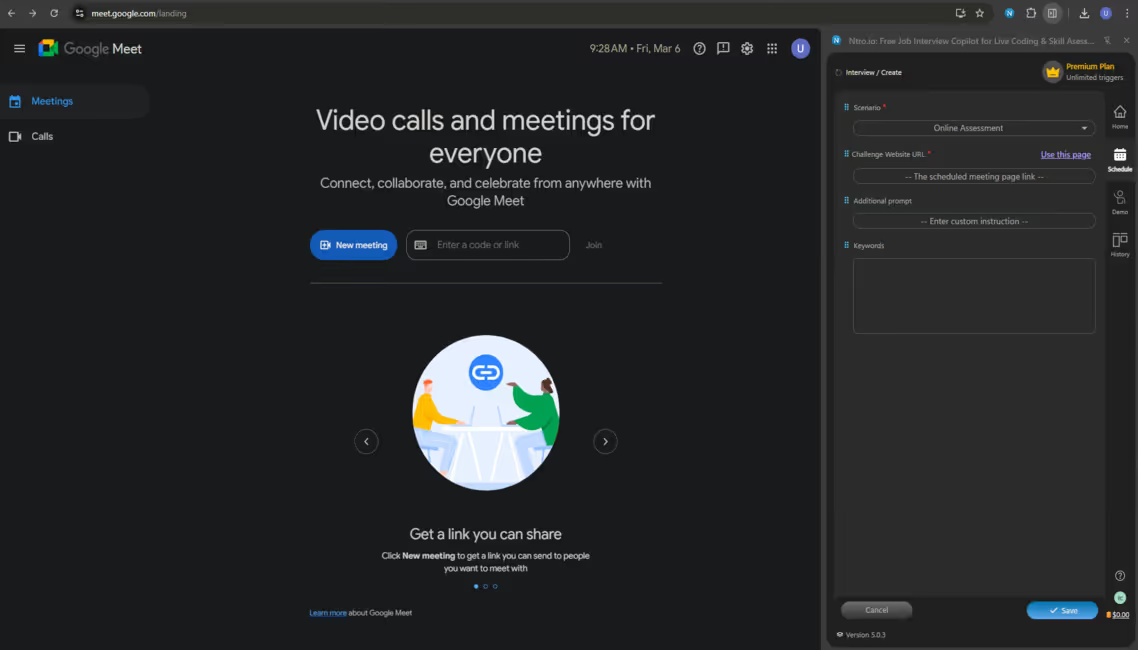
Fill in the meeting URL.
Input contextual information for tailored answers.
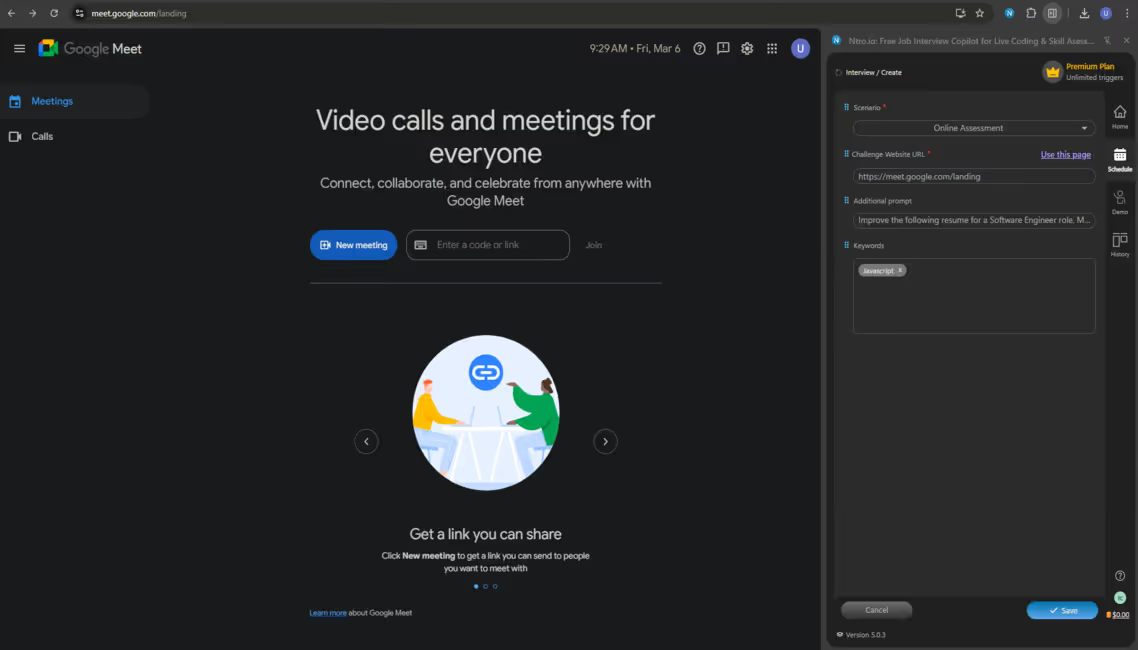
Please input your additional prompt and keywords.
Click here to finish the setup.
Please click [Save].
Check the new interview scheduled in the list.
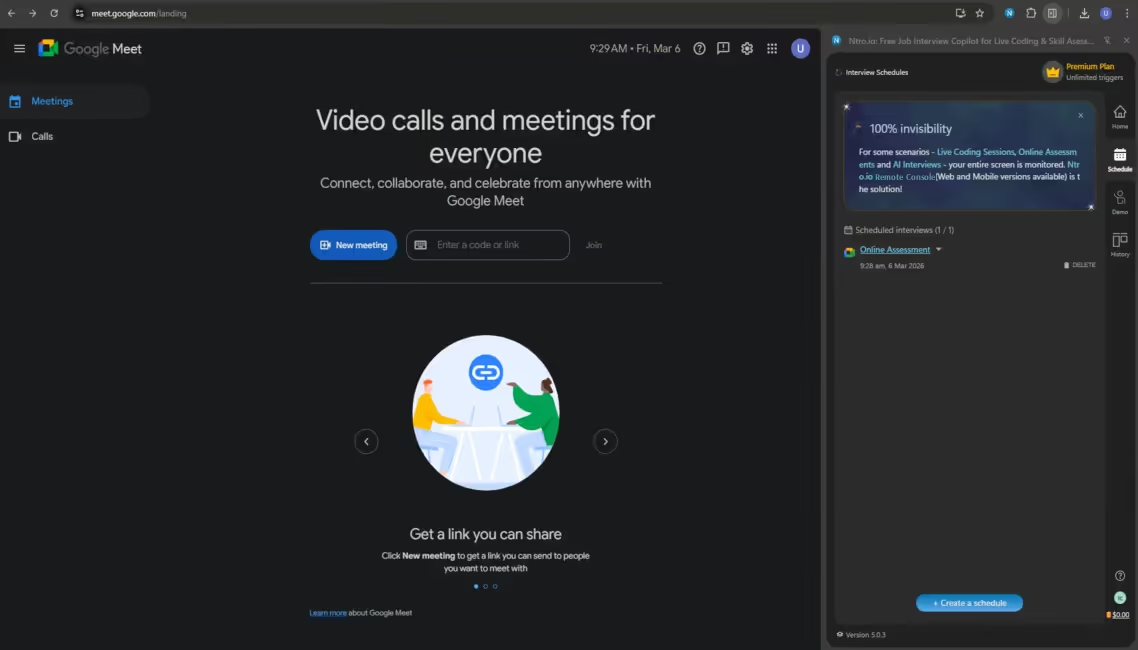
The new interview has been added in the list.
Click [Open Remote Console] before
starting assessment.
starting assessment.
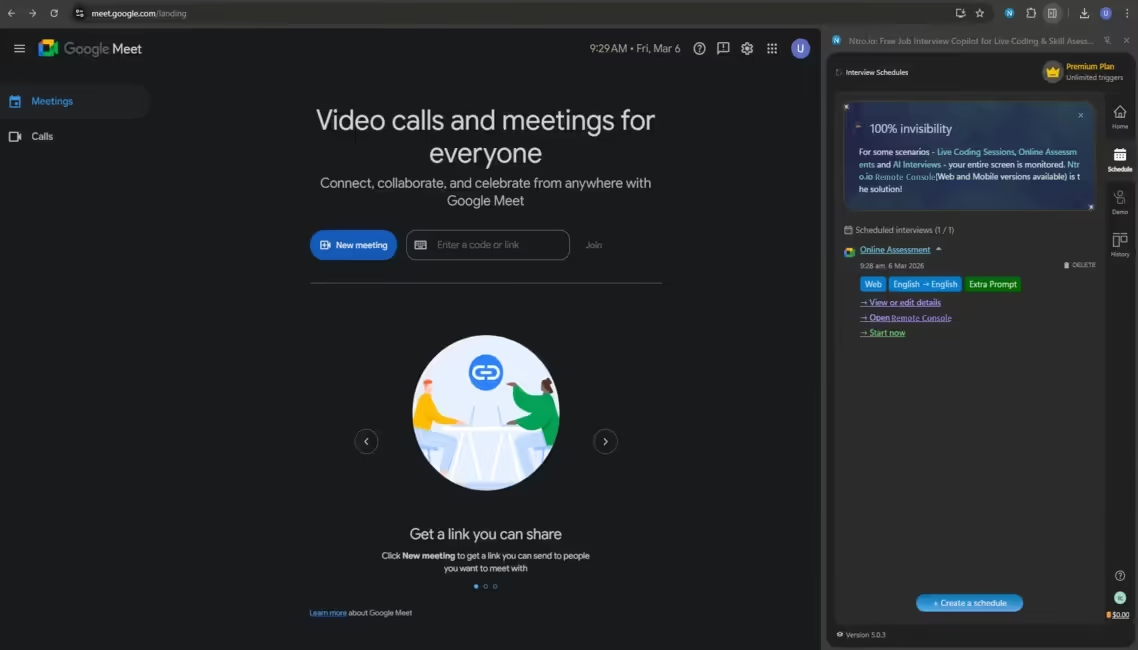
Please click [Open Remote Console] before starting.
Before diving into the session, please make sure
Remote Console open on your mobile device or
another display. Click the URL or scan the QR
code to access it.
Remote Console open on your mobile device or
another display. Click the URL or scan the QR
code to access it.
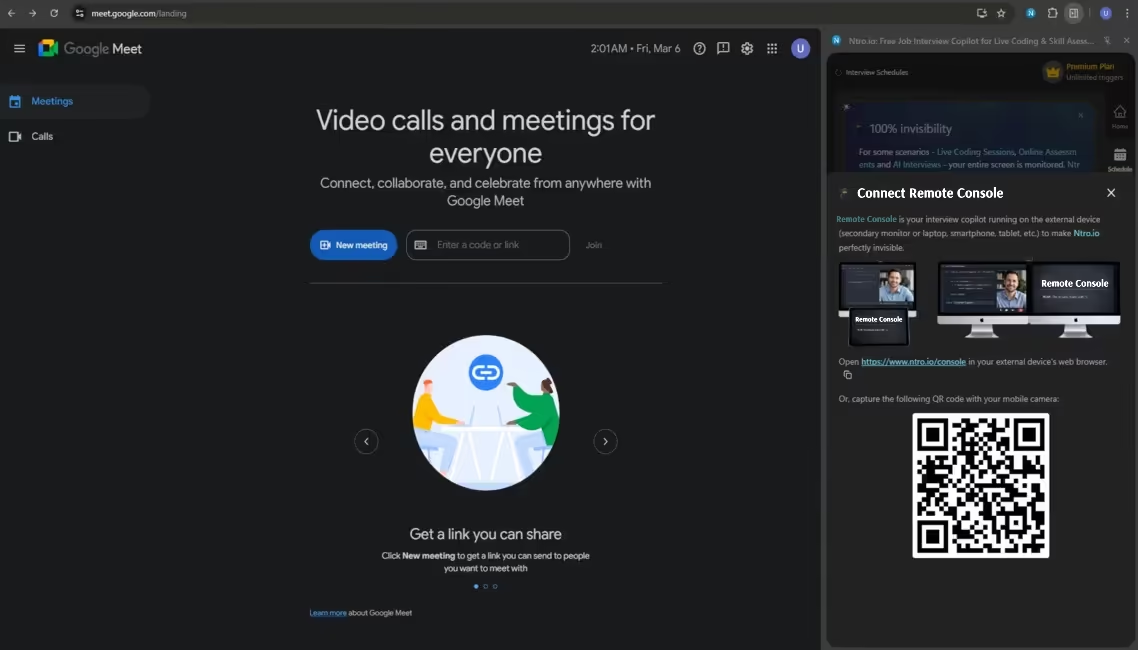
Please click the URL or scan the QR code to open the Remote Console.
Open and log in to the Remote Console
on your secondary device. (iPod or Tablet
is the most recommended option.)
https://www.ntro.io/consoleon your secondary device. (iPod or Tablet
is the most recommended option.)
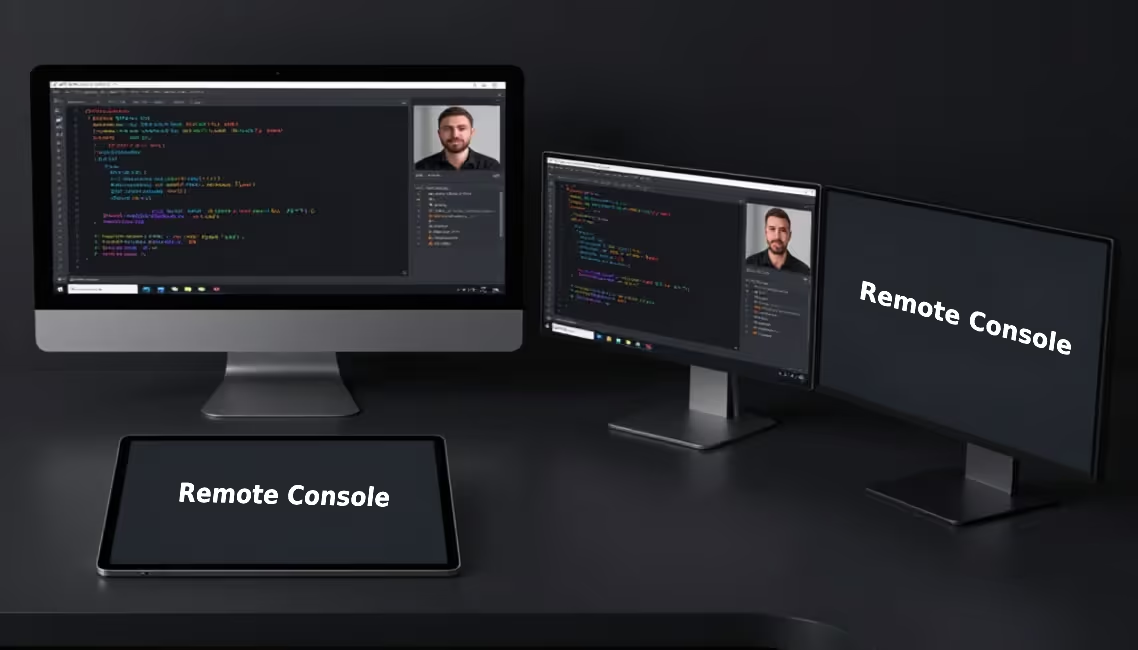
Open and log in to the Remote Console.
Expand and click [Start now].
Make sure you're in the correct meeting page.
Please click [Start Now] to start assessment.
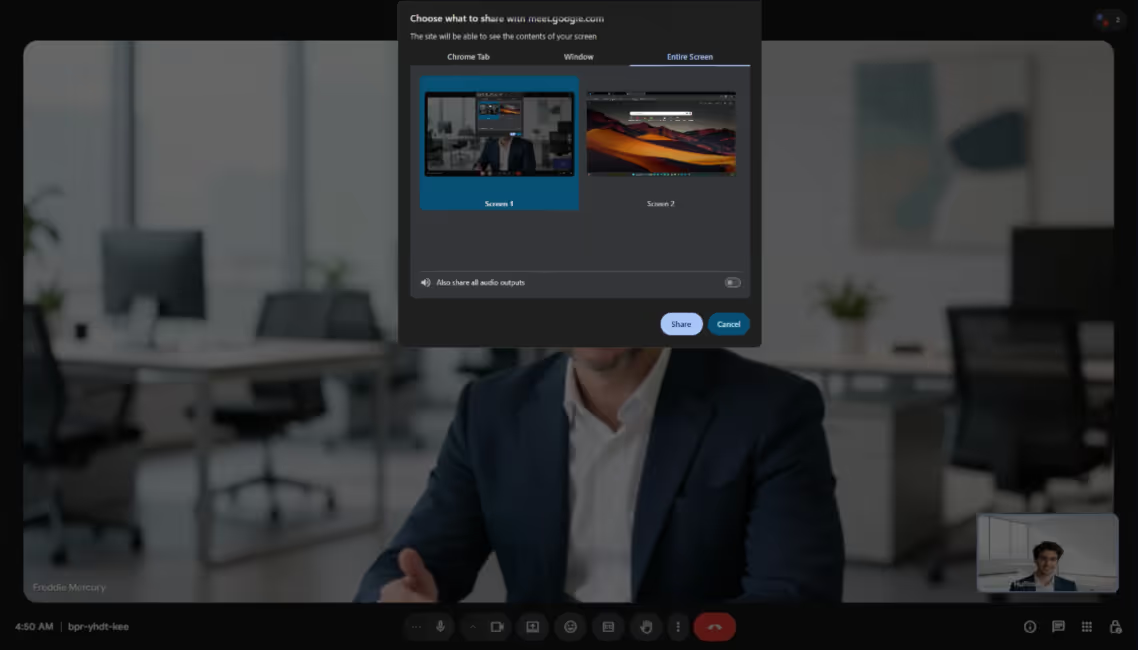
Select the screen where
the session would be
processed.
the session would be
processed.
Please select the screen to share with Ntro.io.
Click [Share].
Click [Share].
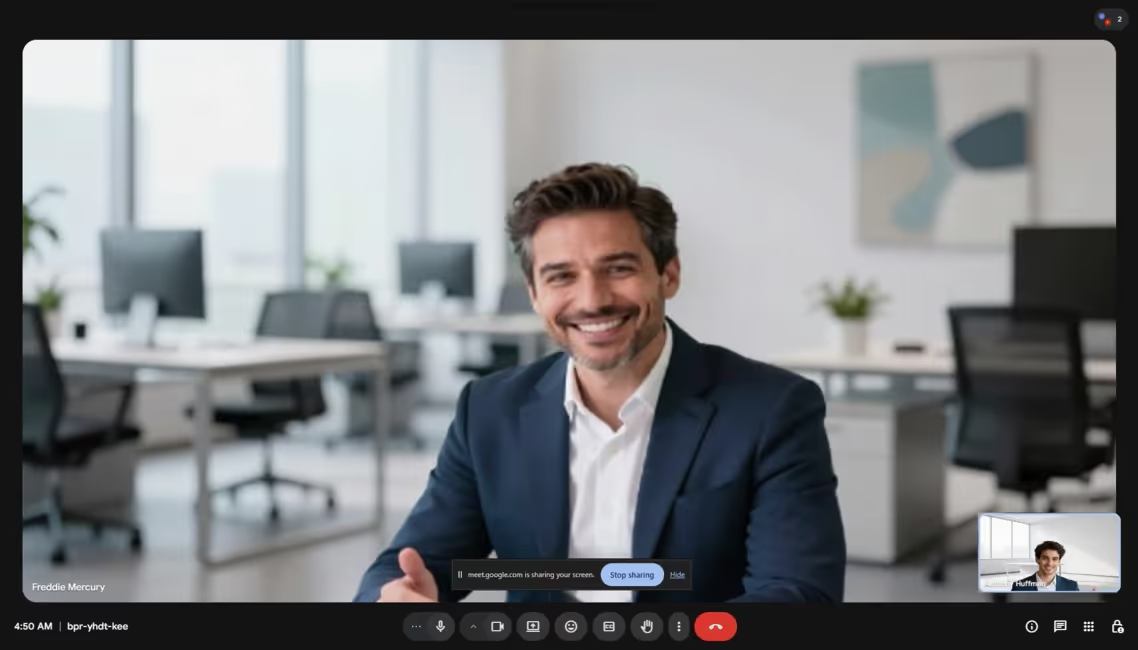
Click [Hide] to hide
this widget.
this widget.
Hide the screen-sharing widget.

The Online Assessment has just started. The Remote Console is synced to be ready.
The Remote Console is synced to get ready.
Click here to capture the
current assessment screen.
current assessment screen.
Capture the assessment screen.
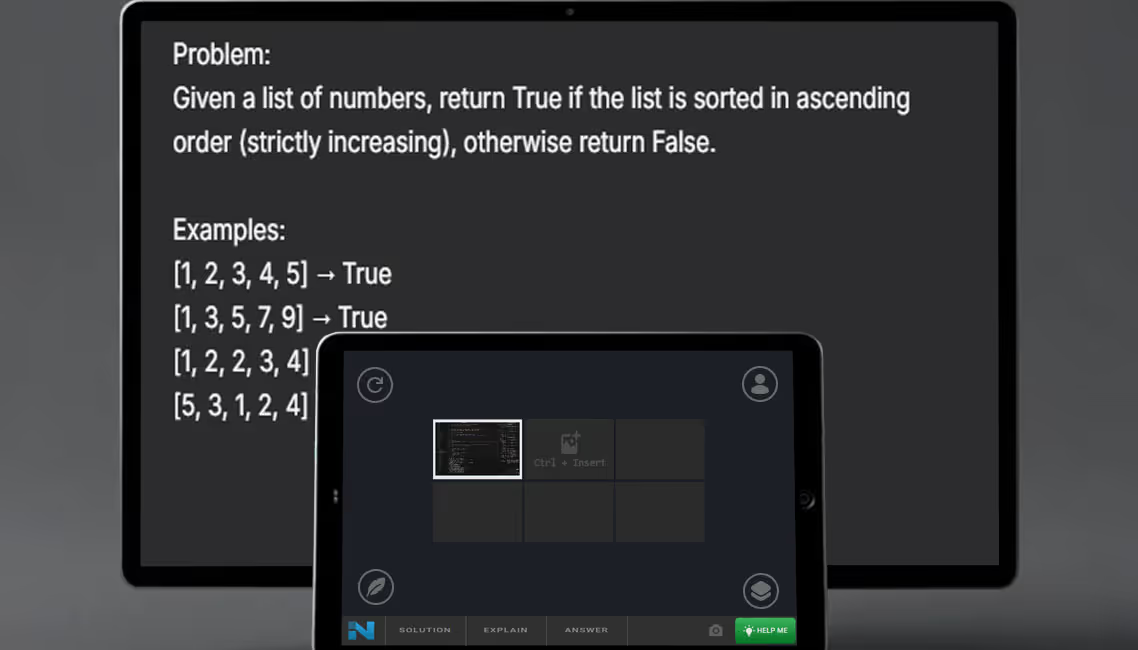
Click here to get the solution
to the task.
to the task.
Trigger hint for solution.
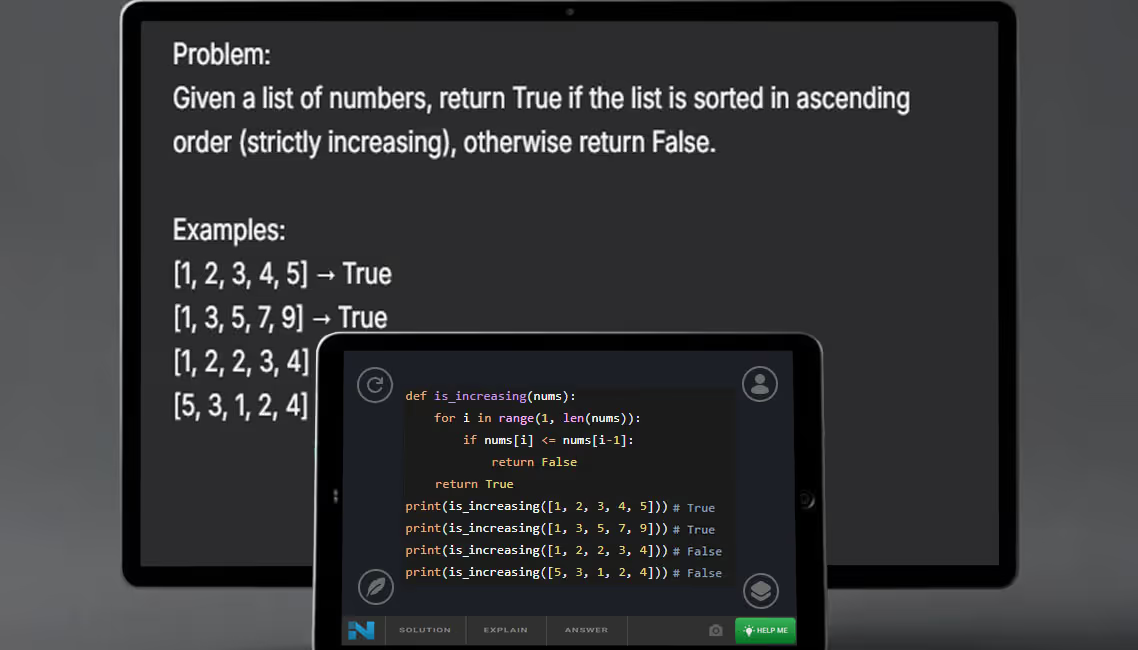
The answer is displayed
immediately.
immediately.
Get hints.
Congrats, Good Luck with Your Interviews!
Finish

Finish




.avif)